Installation
VMware ESX and OCI
This method applies to VMware ESX and Oracle Cloud Infrastructure (OCI) deployments where you import the OVA manually.
-
Download the OVA file from the Delphix Downloads site, under the DCT Appliance folder in the DCT area (not in the Delphix Engines area).
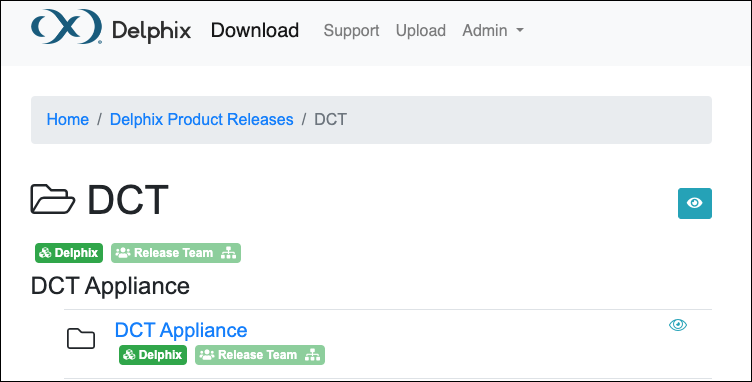
-
Deploy the OVA to your VMware ESX or import it into OCI. Allocate resources according to the requirements and prerequisites.
Once running, visit the After deployment section below for setup steps.
Azure
The DCT appliance is available through the Azure Marketplace. You do not need to download an OVA file for Azure deployments.
-
Navigate to the Azure Marketplace and search for Delphix.
-
Select the DCT appliance listing and click GET IT NOW, then Create.
-
Follow the creation wizard:
-
Select a name for the virtual machine.
-
For OS disk type, select your preferred disk type.
-
Enter a username and password. This information is not used by DCT, but is required by the Azure wizard.
-
Select your Subscription, Resource group, and Location.
-
-
Select a VM size that meets the requirements and prerequisites.
-
Configure VM settings: select or create a Virtual Network, Subnet, and Network Security Group. A public IP address is optional.
-
Add data disks according to the storage requirements. Set Host Caching to None for each data disk.
-
Review and click Purchase to deploy.
Once running, visit the After deployment section below for setup steps.
AWS
The DCT appliance is deployed using an Amazon Machine Image (AMI) shared via the Delphix download site.
Share the AMI to your AWS account
-
On the Delphix download site, select the DCT AMI and accept the Delphix License Agreement. Alternatively, use a link provided by your Delphix solutions architect.
-
On the Amazon Web Services Account Details form:
-
Enter your AWS Account Identifier. To use the GovCloud AWS Region, use the ID for the account with GovCloud enabled.
-
Select the AWS Region where the AMI will be shared. For a different region, contact your Delphix account representative.
-
-
Click Share. The DCT appliance image will appear in your list of AMIs momentarily.
Launch and configure the instance
-
In the AWS EC2 Console, locate the shared AMI and launch an instance.
-
Select an instance type that meets the requirements and prerequisites.
-
Configure networking: set Auto-assign Public IP to Disable, select your VPC and Subnet, and enable termination protection.
-
Add EBS storage volumes per your requirements. Use GP2 or GP3 volume types and set Delete on Termination per your organization's policy.
-
Assign or create a Security Group that meets port requirements outlined in the DCT architecture section of Deployment methods and architecture.
-
Launch the instance.
Once running, visit the After deployment section below for setup steps.
After deployment
Use the VM console and wait for both the Delphix Management Service and the Delphix DCT Service to come online. This process can take up to 30 minutes.
From a supported web browser, navigate to the DCT appliance URL. When prompted, log in with the default credentials:
-
Username: sysadmin
-
Password: sysadmin
On first login, you will be prompted to change the default password. The Welcome screen will display an overview of the DCT setup process.
You will be prompted to:
-
Create a new sysadmin password.
-
Enter an email address for administrative notifications.
-
Copy and save the bootstrap API key.
After initial setup, you can regenerate the bootstrap API key from the Setup UI at any time.
Navigate through the following sections:
-
Time
-
Network
-
Network Security
-
Use KeyStore/HTTPS configuration to upload a TLS certificate for the DCT appliance’s inbound HTTPS interface. This replaces the ingress configuration used in Kubernetes deployments.
-
Use Trust Store configuration to add any certificate authorities that DCT should trust when making outbound TLS connections to Engines or orchestrators. This replaces manual edits to values.yaml for Kubernetes deployments.
-
-
Storage
-
DCT does not support object storage for engines. Block storage disks are used for both the minimal Management Service metadata and DCT metadata. While the minimum enforced size is lower, a 50 GB disk is recommended.
-
-
Registration
On the Summary page, review all configuration settings. Click Submit to apply the configuration. The appliance will restart its services.
For DCT deployments, you can skip:
-
DSP
-
STUNNEL SERVER
-
Any configuration pages for phone home, SAML/SSO, and LDAP (these are configured later from the DCT application itself).
After restart, you will be redirected to the DCT UI, which is always accessed over HTTPS at the /dct path. For example: https://<engine-url>/dct
You can log in using the bootstrap API key obtained during initial setup, via the Sign in or API Key links.
You can also regenerate a new bootstrap API key from the Setup app. The DCT login screen contains a link to the Setup app, and vice versa.
Once logged in, the DCT UI and API behave similarly to the Kubernetes or OpenShift form factors of DCT.
-
DCT UI: Manage accounts, roles, authentication, and other application-level functions.
-
Setup UI: Configure sysadmin authentication, TrustStore/KeyStore, engine registration, network, storage, and regenerate the bootstrap API key.
After deployment, register DCT and enable telemetry to meet telemetry requirements.