Data Infrastructure
Overview
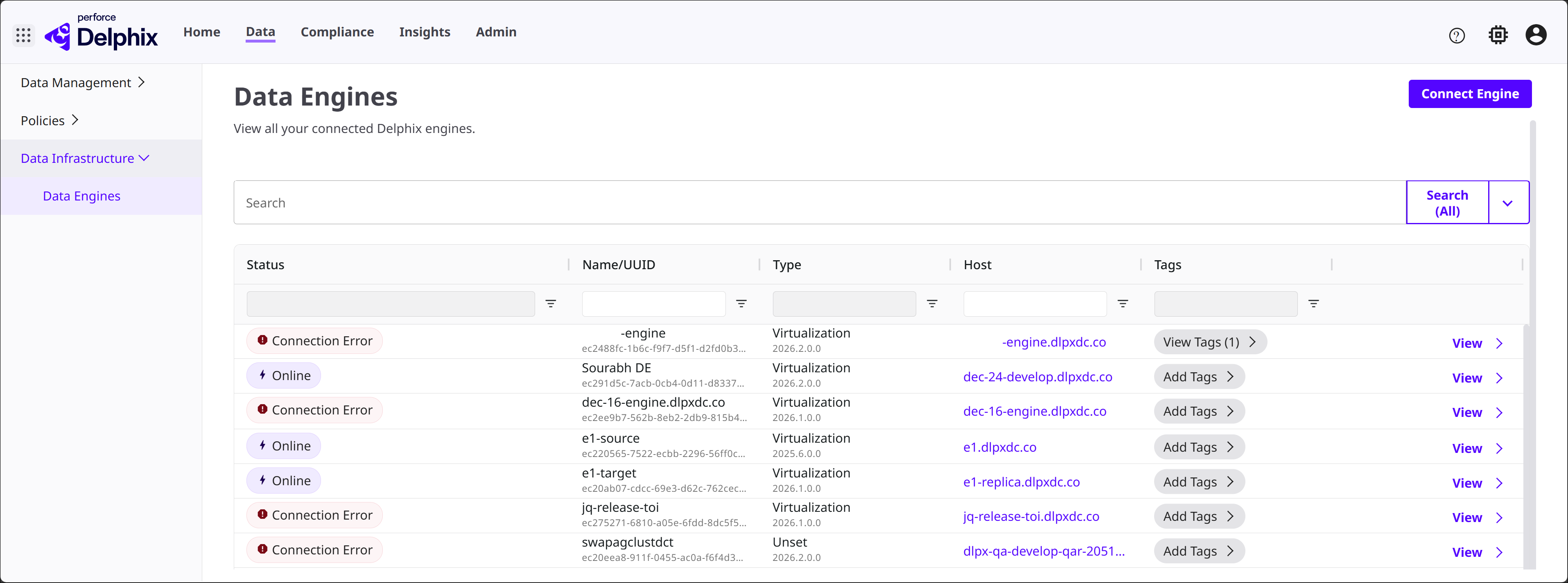
In the DCT UI, select Data at the top of the page. Expand Data Infrastructure on the left side, then select Data Engines. This page will show all of the DCT-connected Continuous Data Engines in a table, with columns showing information like Status, Name/UUID, Type, Host, and Tags. You can also add a new connection with the Connect Engine button.
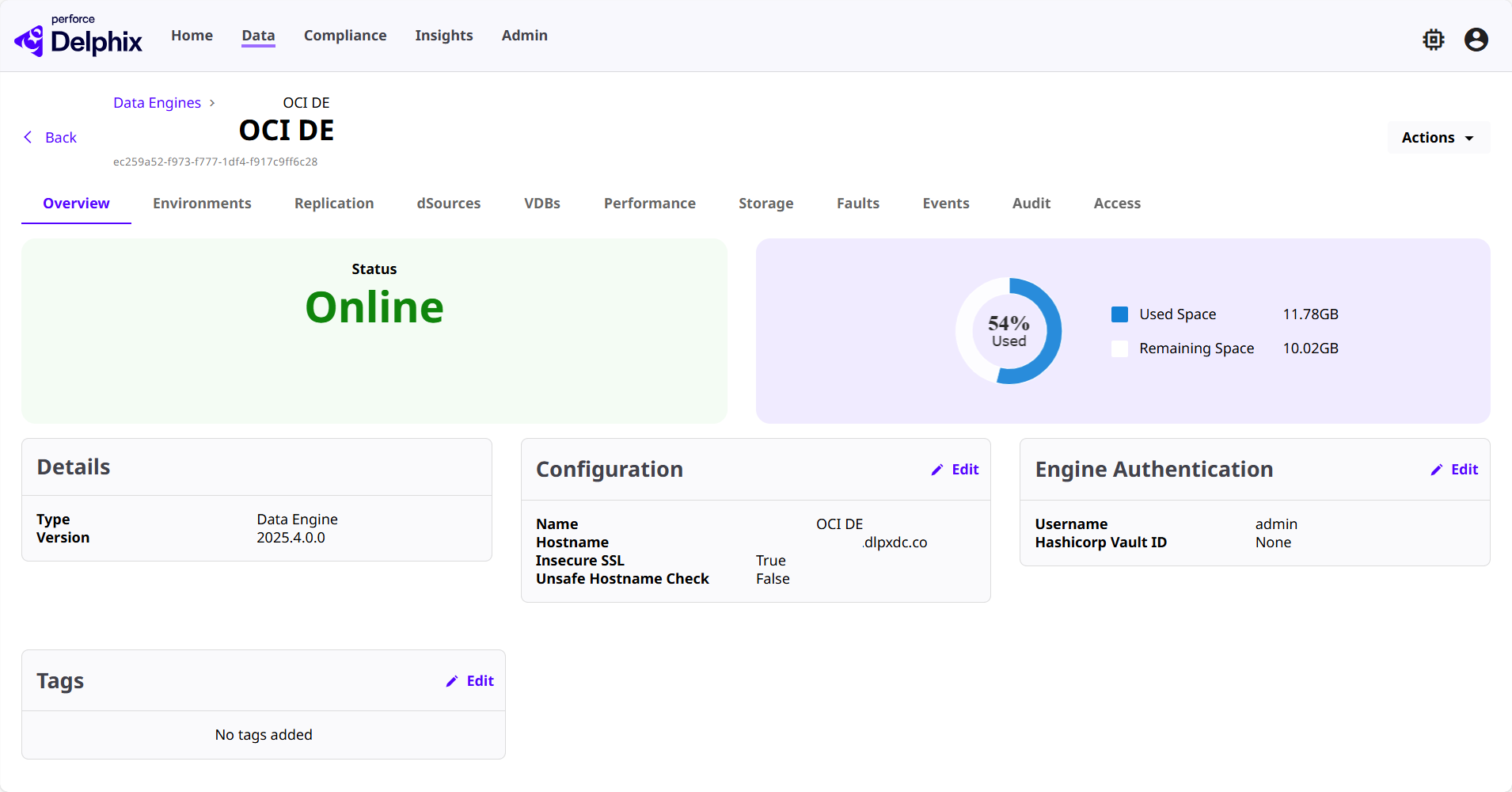
From the Data Engines table, click the View button next to a listed engine to see its corresponding details page. The Engine details page is a vast collection of data and information shown across categorized tabs. For a full breakdown of what you can expect to find, visit Engine details page.
Upgrade Engines from DCT
When a Delphix account team enables the preview, administrators can use DCT to coordinate engine upgrades from the DCT interface. This workflow is available from the Data Infrastructure area for supported Continuous Data engines. In addition to meeting the general requirements in the Continuous Data supported versions and upgrade matrix, engines must be running version 2026.4.0.0 or later to be eligible for a DCT-orchestrated upgrade.
The upgrade workflow provides a centralized way to upload an upgrade image, validate engine readiness, choose target engines, and monitor the upgrade as it moves through the transfer, verification, and apply phases. The capability is not enabled by default and is available only when Delphix turns it on for your environment.
Before uploading an upgrade image, ensure DCT has at least twice the size of the upgrade tarball available in free disk space, and confirm your ingress or load balancer accepts uploads of the required size as described in Ingress setup.
Use the Upgrade Images page to upload a compatible engine upgrade tarball, then use the Upgrade Engines action from the engine management flow to select the engines to upgrade and review any prerequisites before starting the process.
Connect Engine wizard
To add a new Data Engine, select the Connect Engine button in the top-right corner. The connection wizard will open with some sections to configure.
Engine Details
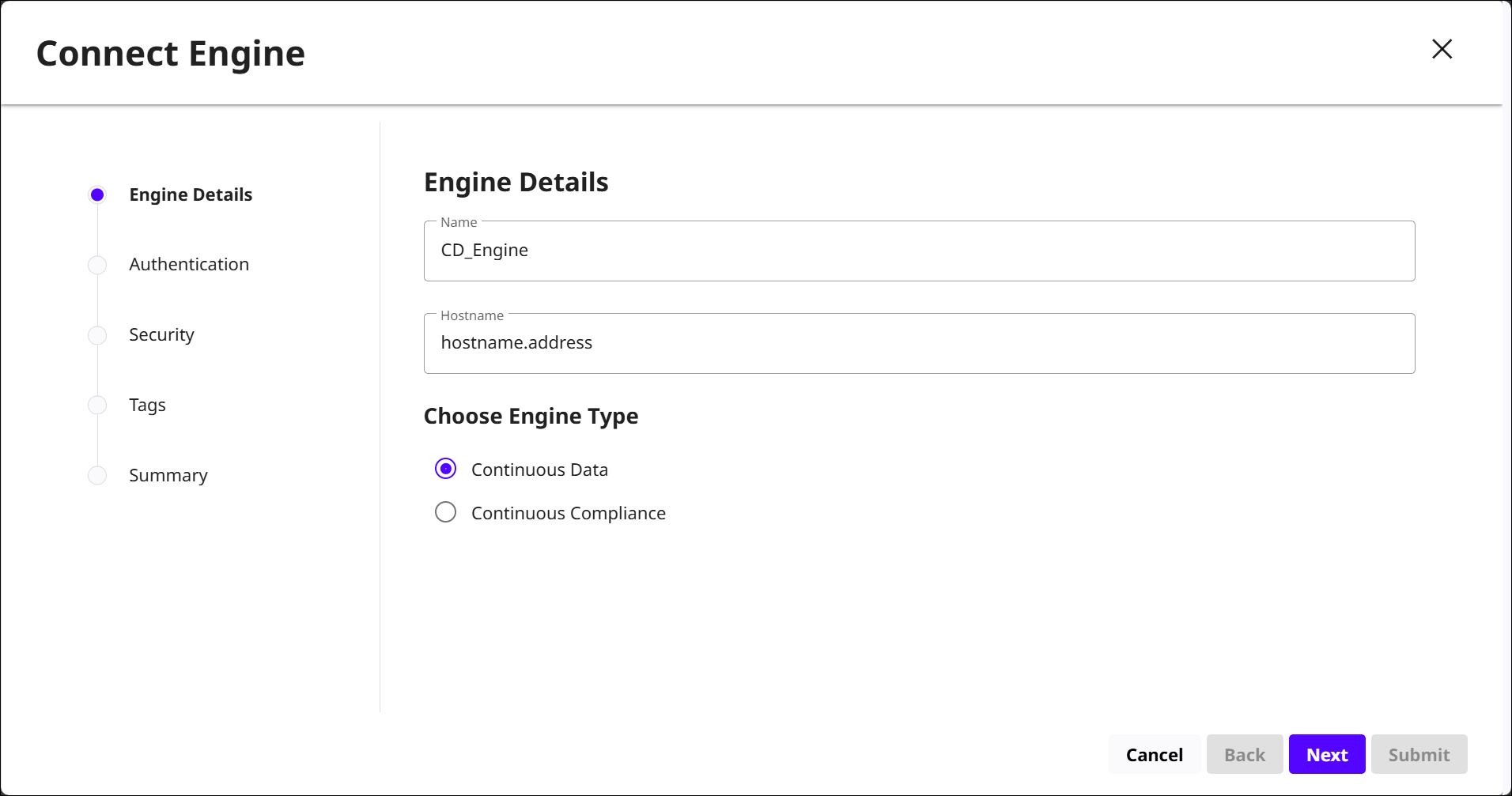
In the first section of the wizard, enter the Name and Hostname of the engine being connected. Then, select whether this is a Continuous Data or Continuous Compliance Engine.
For this topic, Continuous Data configurations will be shown.
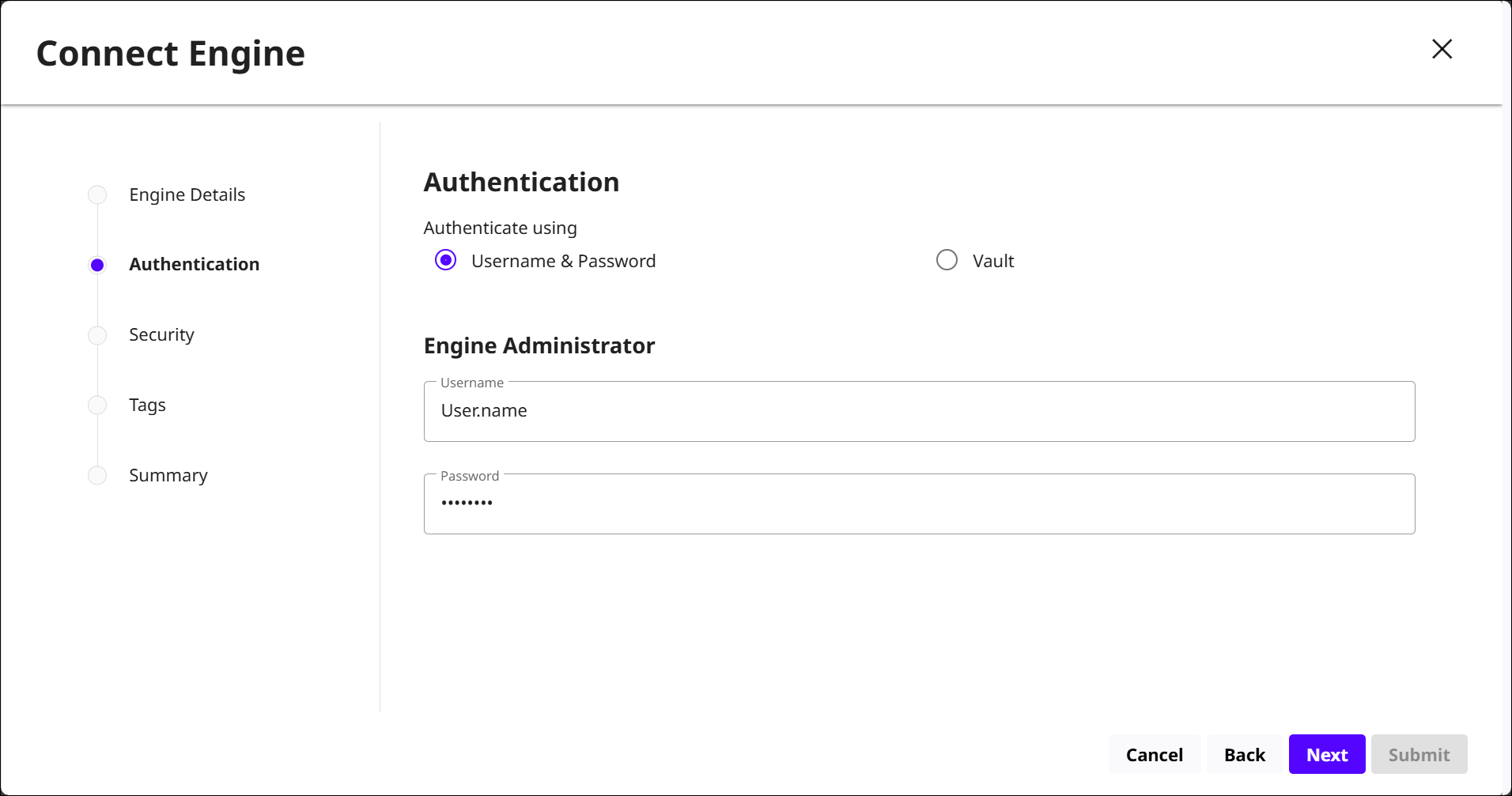
Authentication
Choose how the engine will be authenticated. Username & Password credentials must be for an administrator of the engine being connected. These credentials are stored in DCT.
Security
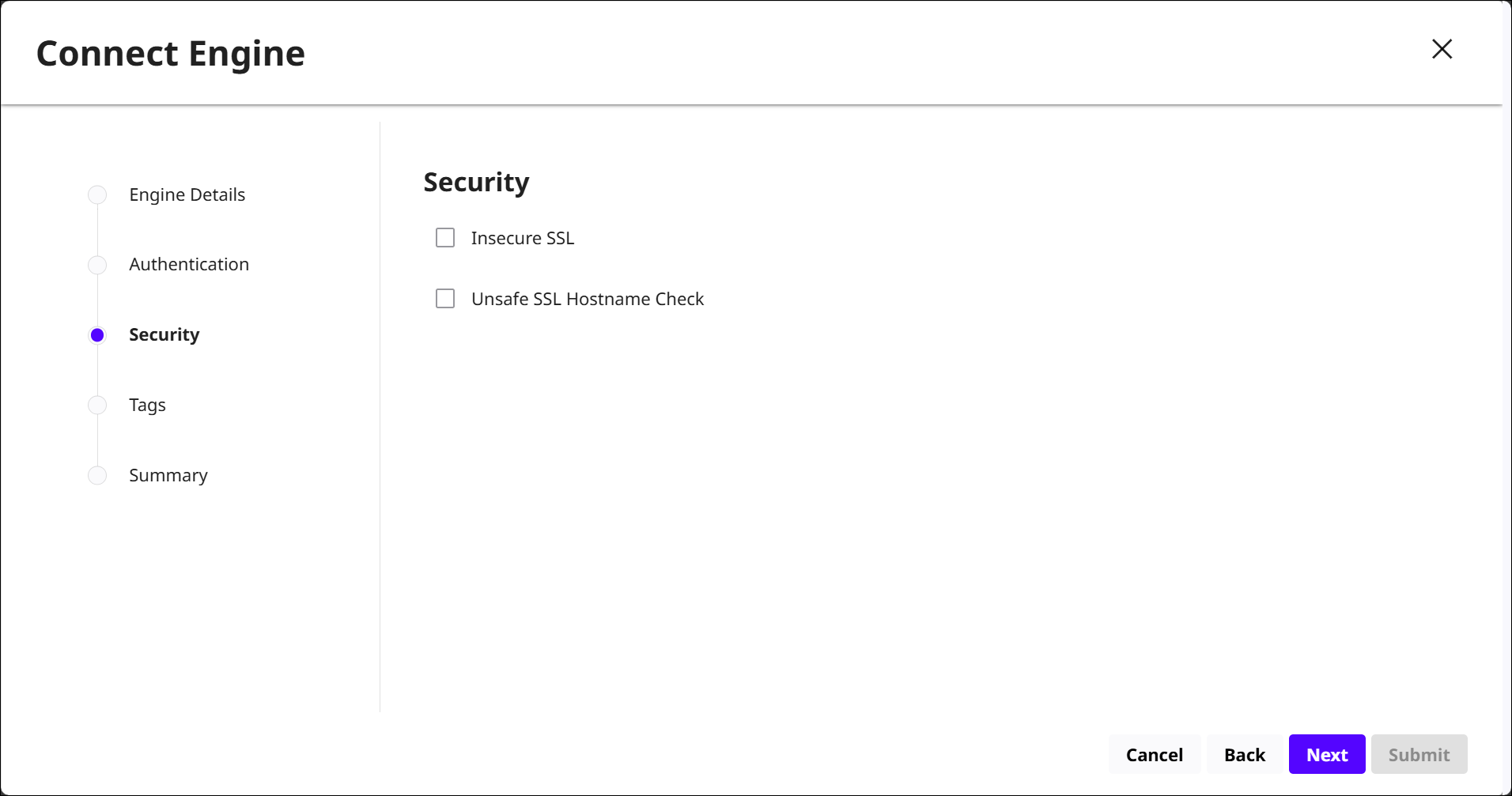
When you register an engine with DCT, all communication between DCT and the engine happens over HTTPS. DCT will verify the engine’s TLS certificate and its hostname to prevent man‑in‑the‑middle attacks. If the engine’s certificate is not trusted or its hostname does not match what the certificate expects, the connection will fail unless you either fix the certificate or override the checks.
-
Insecure SSL: Allows DCT to connect to the engine without validating its TLS certificate.
ONLY USE for situations where the certificate cannot be validated and you accept the security risk.
-
Unsafe SSL Hostname Check: Allows DCT to ignore hostname mismatches in the engine’s certificate.
ONLY USE if the certificate’s hostname truly cannot be corrected. It weakens security and is automatically overridden if Insecure SSL is enabled.
Tags
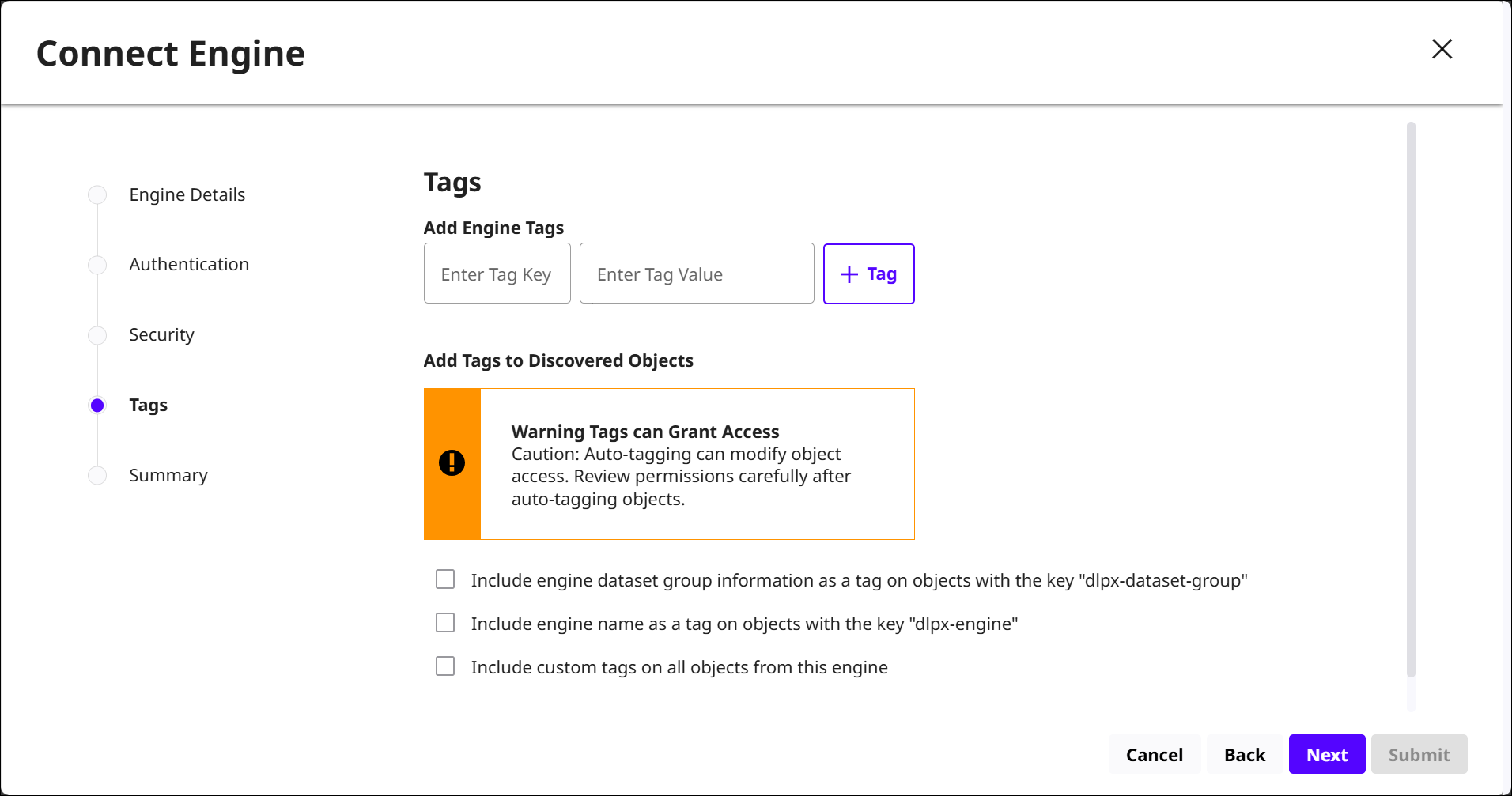
Add any engine‑level tags, which behave like other DCT tags and will be applied to objects ingested from this engine. These are defined by a Tag Key and corresponding Tag Value.
The Add Tags to Discovered Objects section is for enabling auto‑tagging features, meaning DCT will automatically apply certain tags to objects it discovers on the engine. The UI warning is reminding you that enabling these options can unintentionally grant or restrict access, so permissions should be reviewed after enablement.
Summary
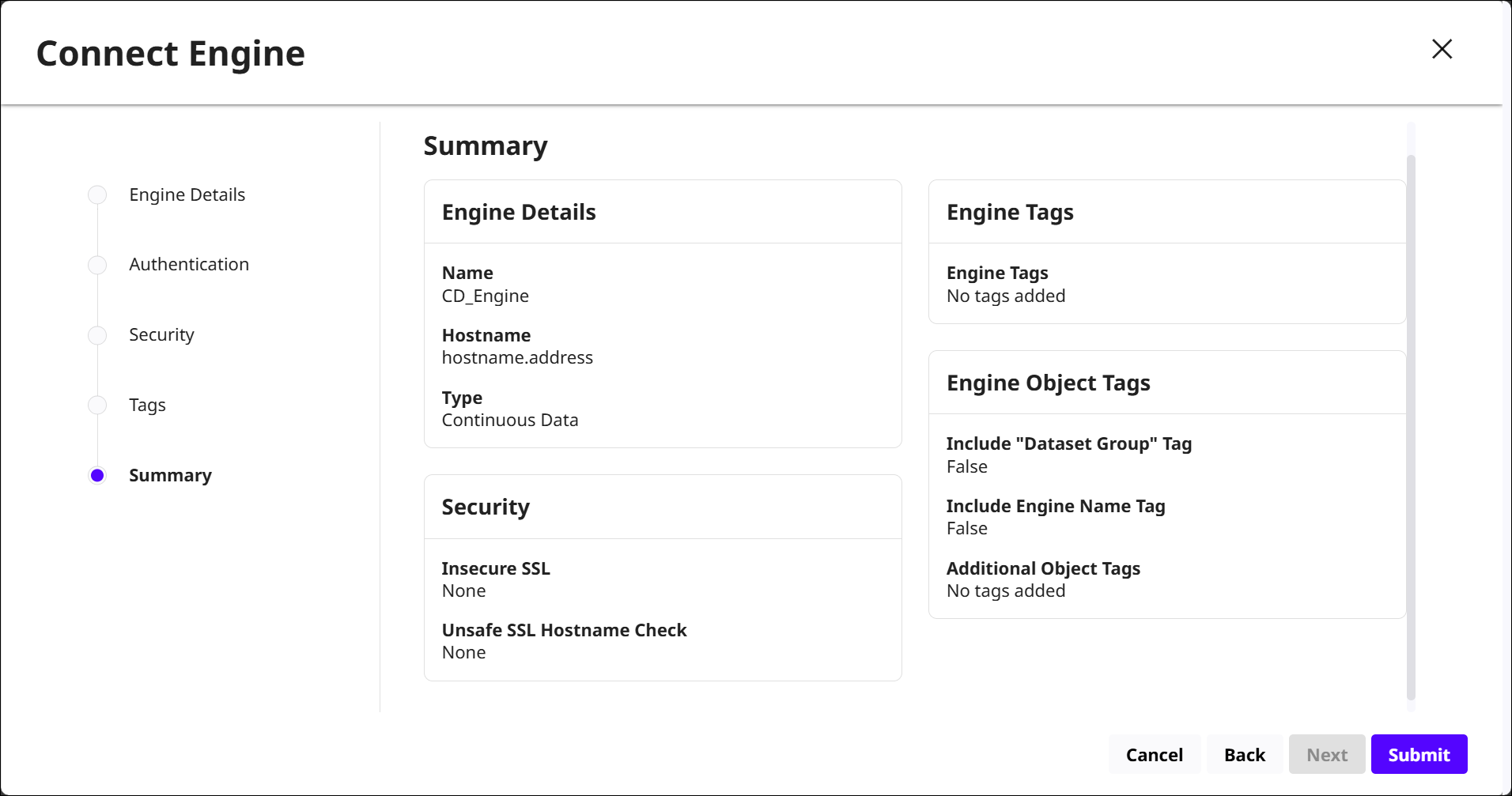
Review all of the configurations setup in each of the previous sections, then select to Submit the connection. The new engine connection will appear in the Data Engines list.