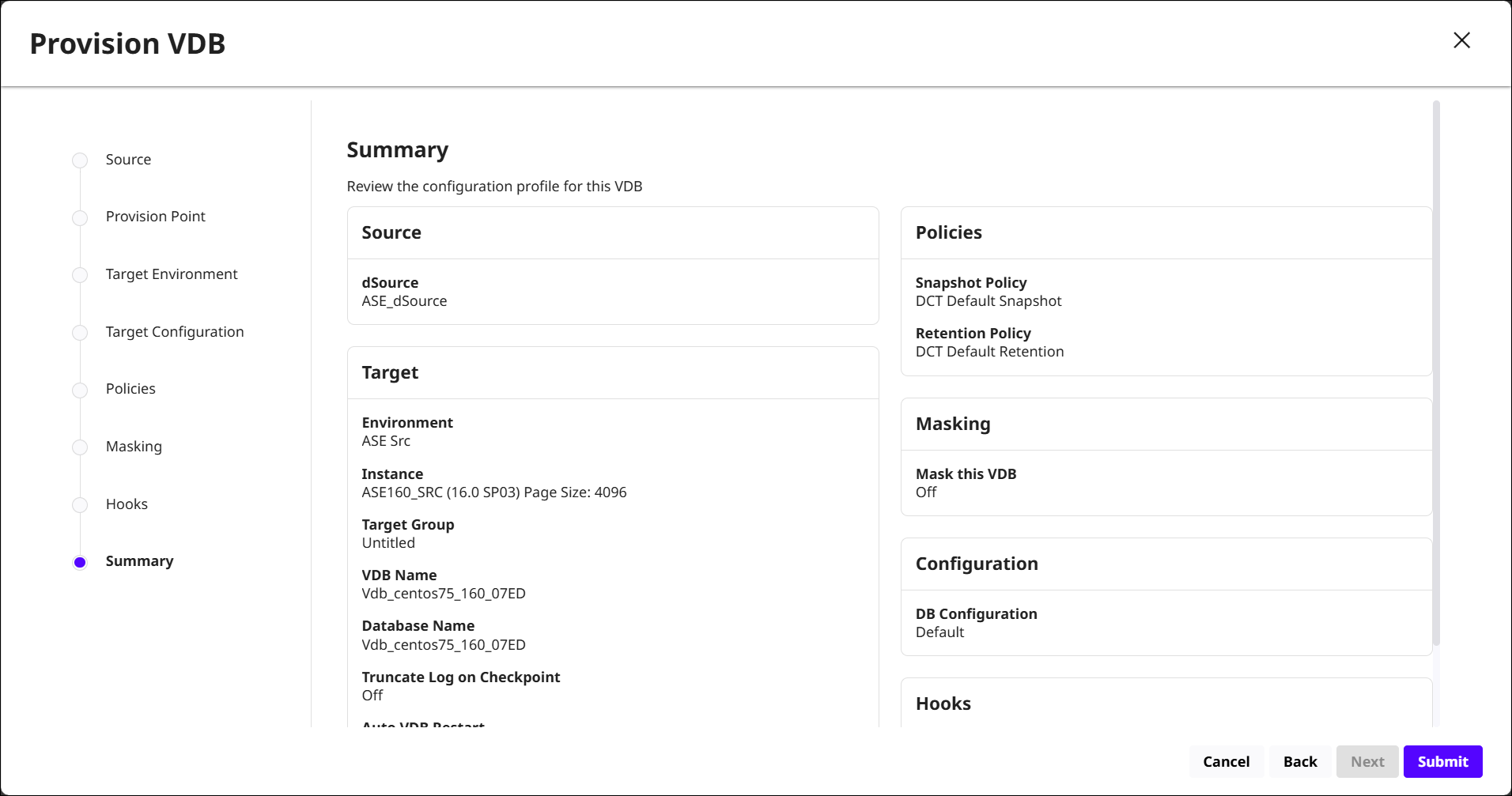
VDB provisioning wizard
Overview
To see the VDBs available in DCT, navigate to Data > Data Management > VDBs. To create a new VDB, click Provision VDB in the top-right corner and follow the configuration steps in the following window.
The Quick reference for supported datasets page covers all supported data source connectors. Click the Learn more button next to a connector type to see the documentation for it. Objects in DCT are a product of their connected infrastructure (i.e., a Continuous Data Engine).
Prerequisites
-
A Continuous Data Engine must be registered to the DCT instance.
-
You must have access to an eligible dSource or VDB to provision a new VDB from.
Using the wizard
The provisioning wizard will walk through the following steps:
-
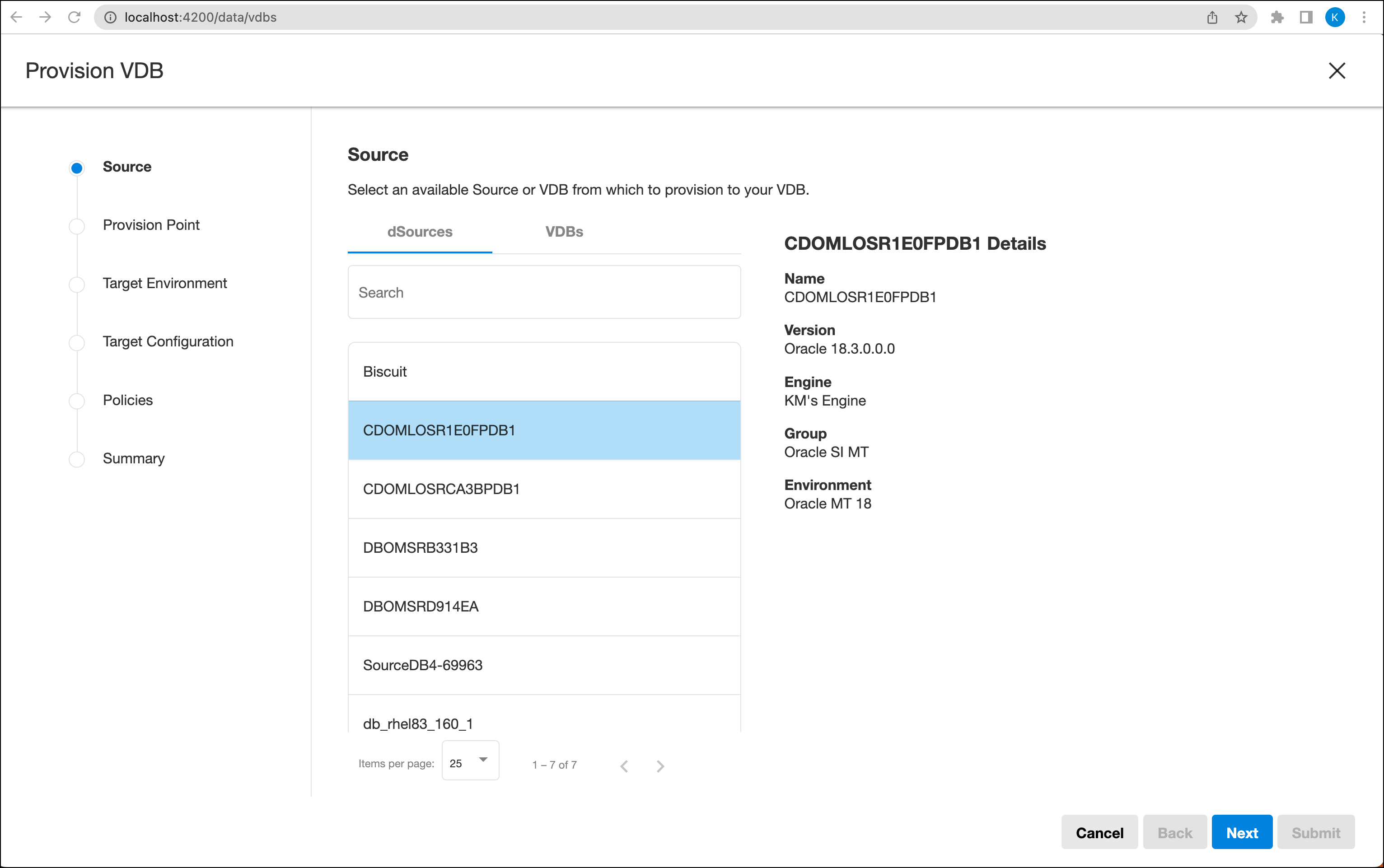
Source
Search and select either a dSource or VDB to provision from. The items populated in these lists are from DCT-connected infrastructure and based on the user's permissions.
-
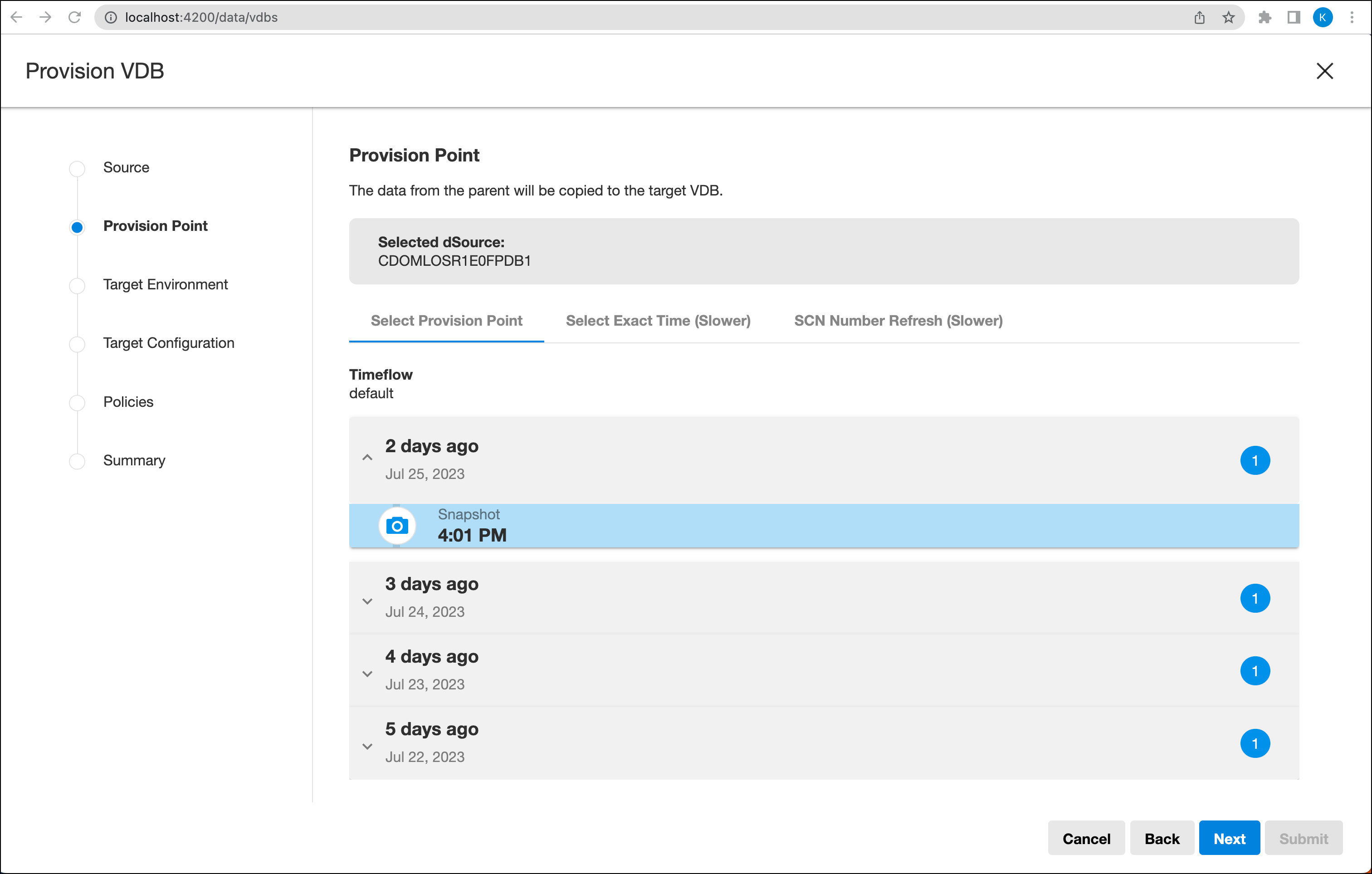
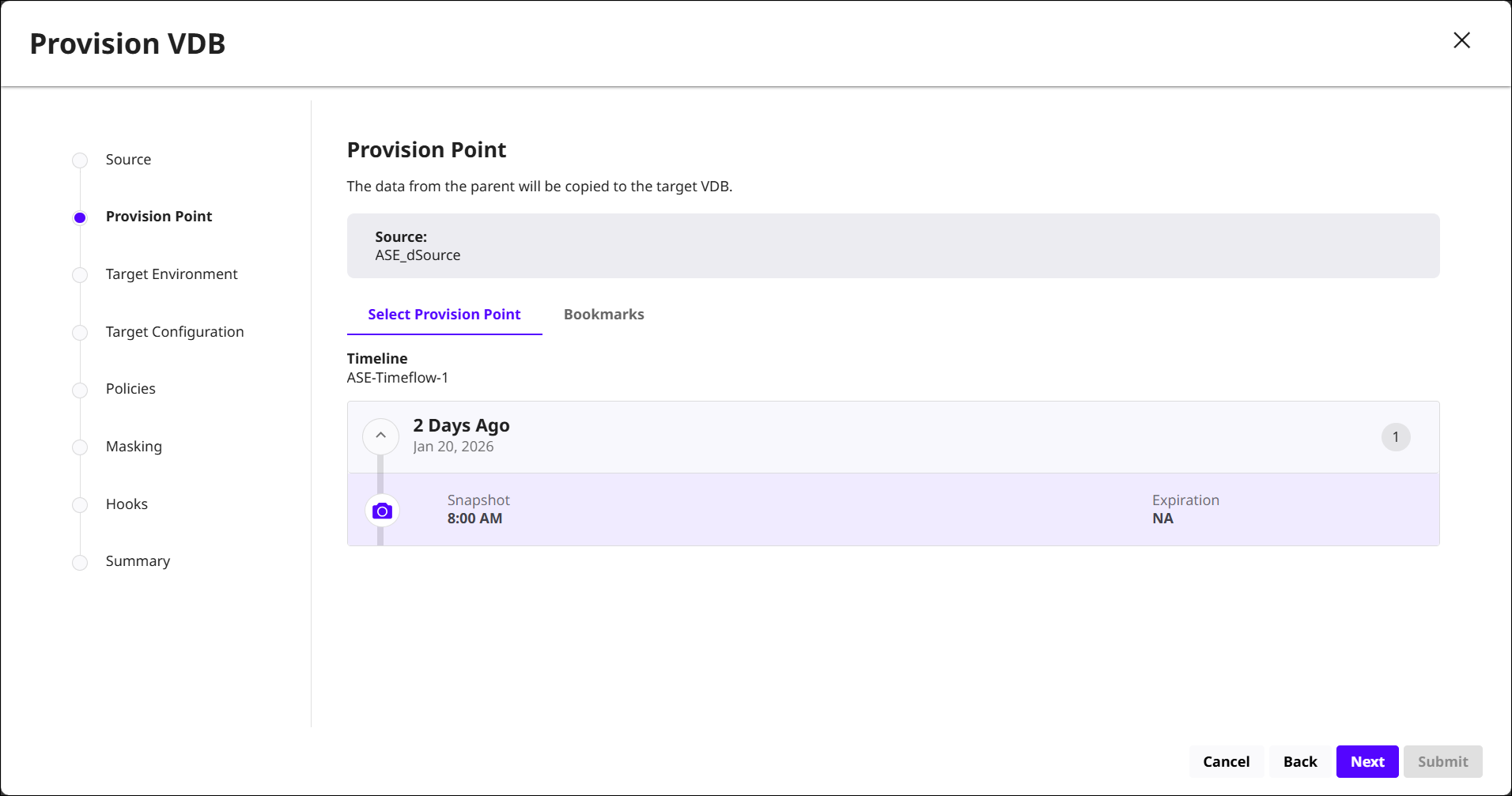
Provision Point
You can choose whether to provision from a Timeline (Snapshot), Bookmark, or SCN of the selected Source object.
-
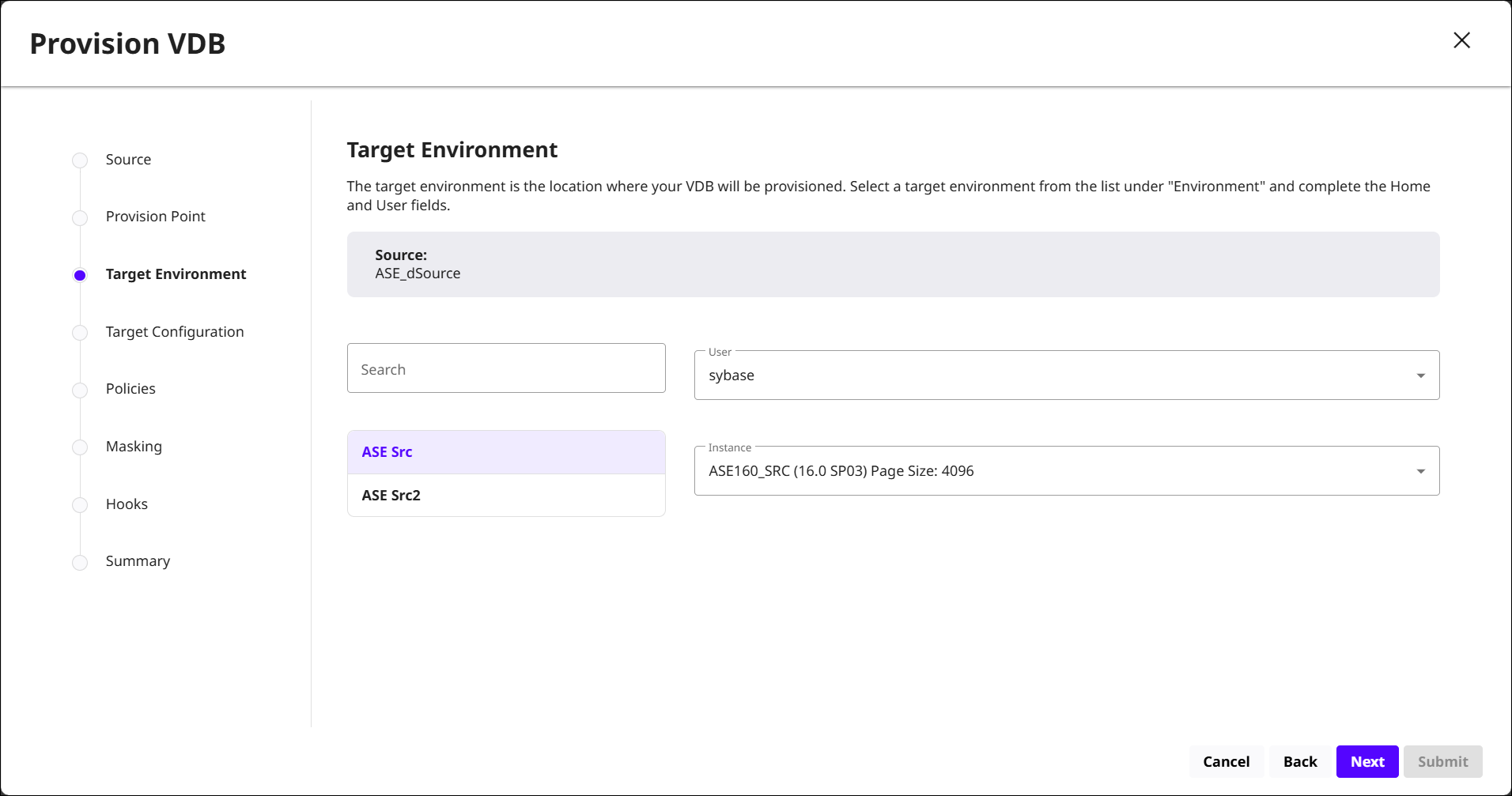
Target Environment
Select a connected data source on the left side. The User and Instance drop-down will show selections from the chosen data source, which will be the target environment for this VDB.
-
Target Configuration
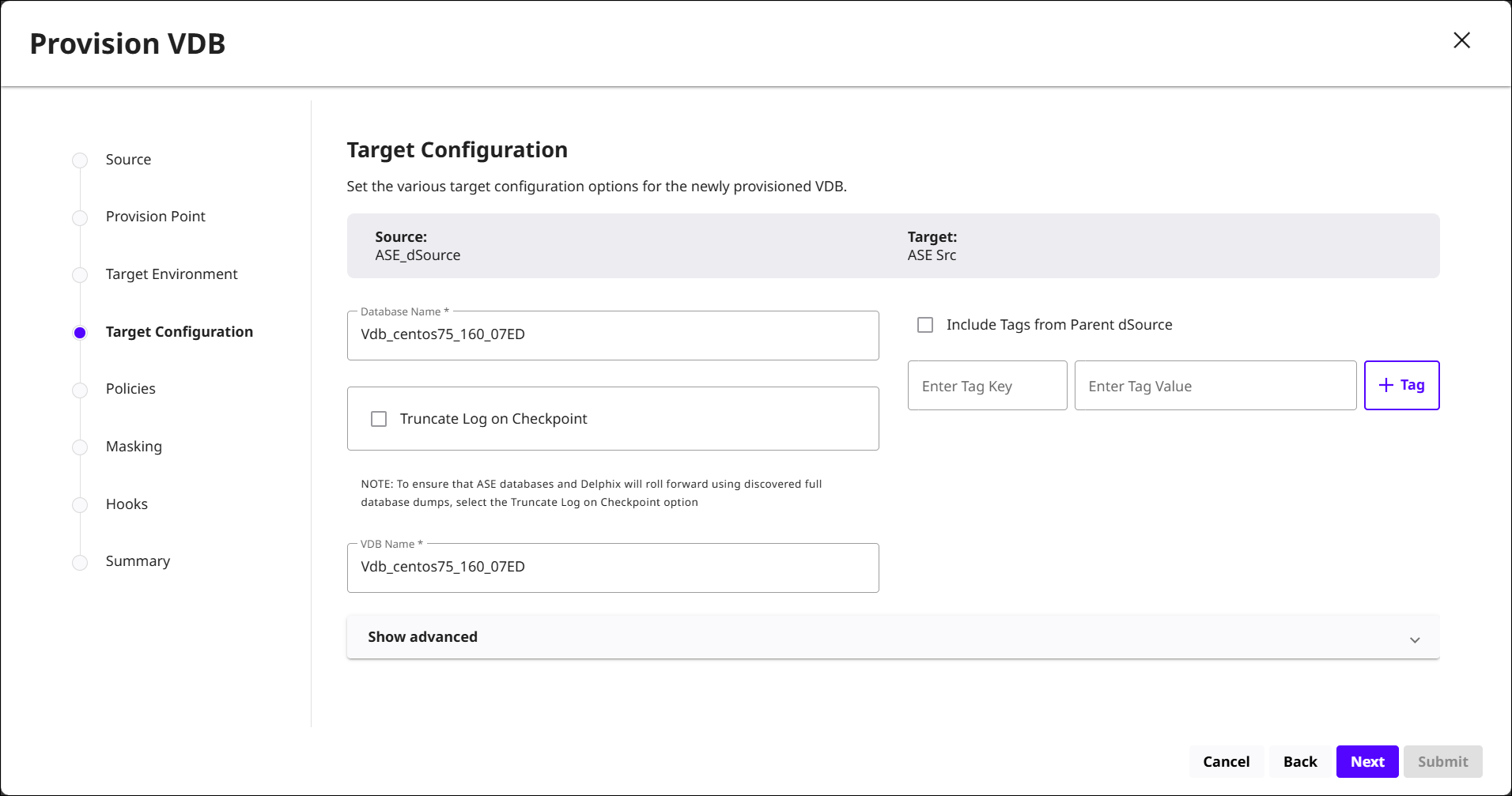
The primary page that defines the various configuration details of the VDB. When available, main values will be pre-filled with default configurations based on the Source.
On the right side, a Tag Key and corresponding Value can be set. Note, when using Include Tags from Parent dSource, they will not populate in this editor.
Values on the left side are dependent on the dataset type. Refer to the dataset’s specific documentation mentioned in the Overview section for additional details.
-
To the previous point, the Show advanced section is largely based on the dataset used to create the VDB. Refer to the same documentation for questions on specific configurations found here.
-
-
Policies
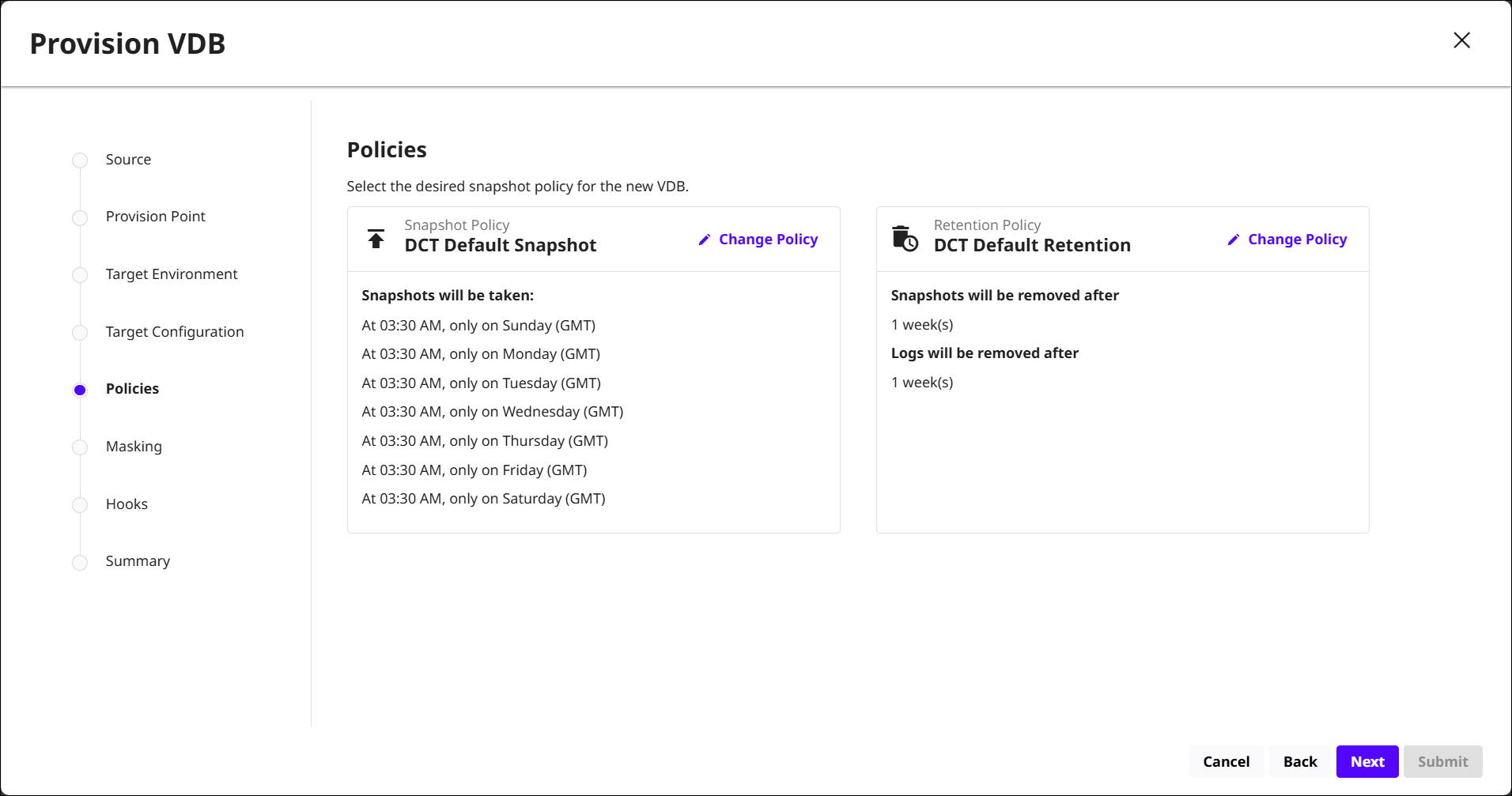
Tailor the Snapshot and Retention policies according to your requirements. Default policies are selected initially, but these settings can be modified through the Change Policy dialog. These and other VDB policies can be managed after provisioning.
-
Masking
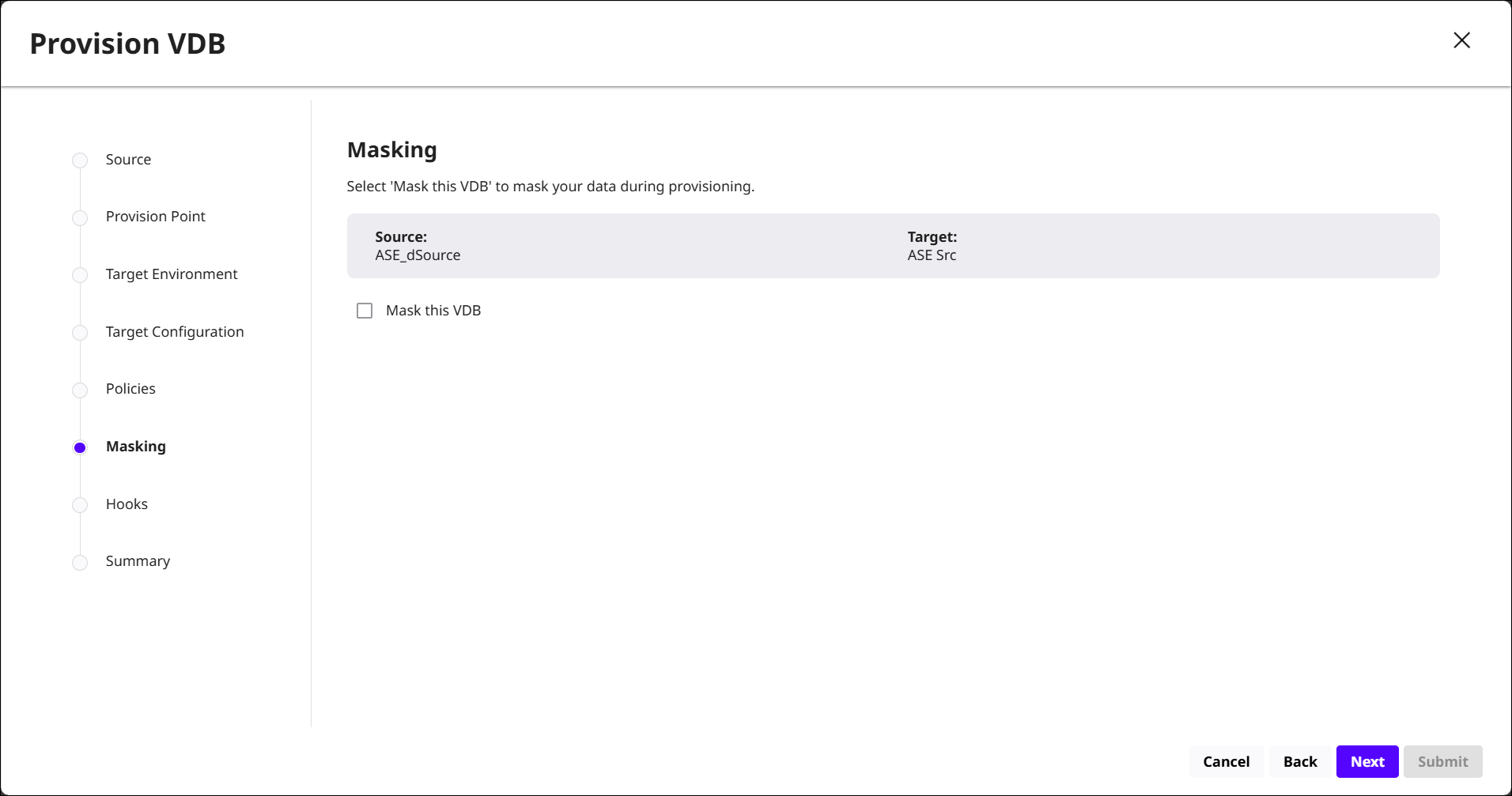
Choose whether or not to mask the VDB. A Continuous Compliance Engine will need to be connected to DCT. The following note will appear when this box is checked:
-
You should define a Configure Clone script in the Hooks step to mask the dataset. The selection of the "Mask the VDB" option will cause the data to be marked as masked, whether you have defined a script to do so or not. If you do not define a script to mask the dataset, the data will not be masked unless there is a masking job associated with the source dataset.
-
-
Hooks
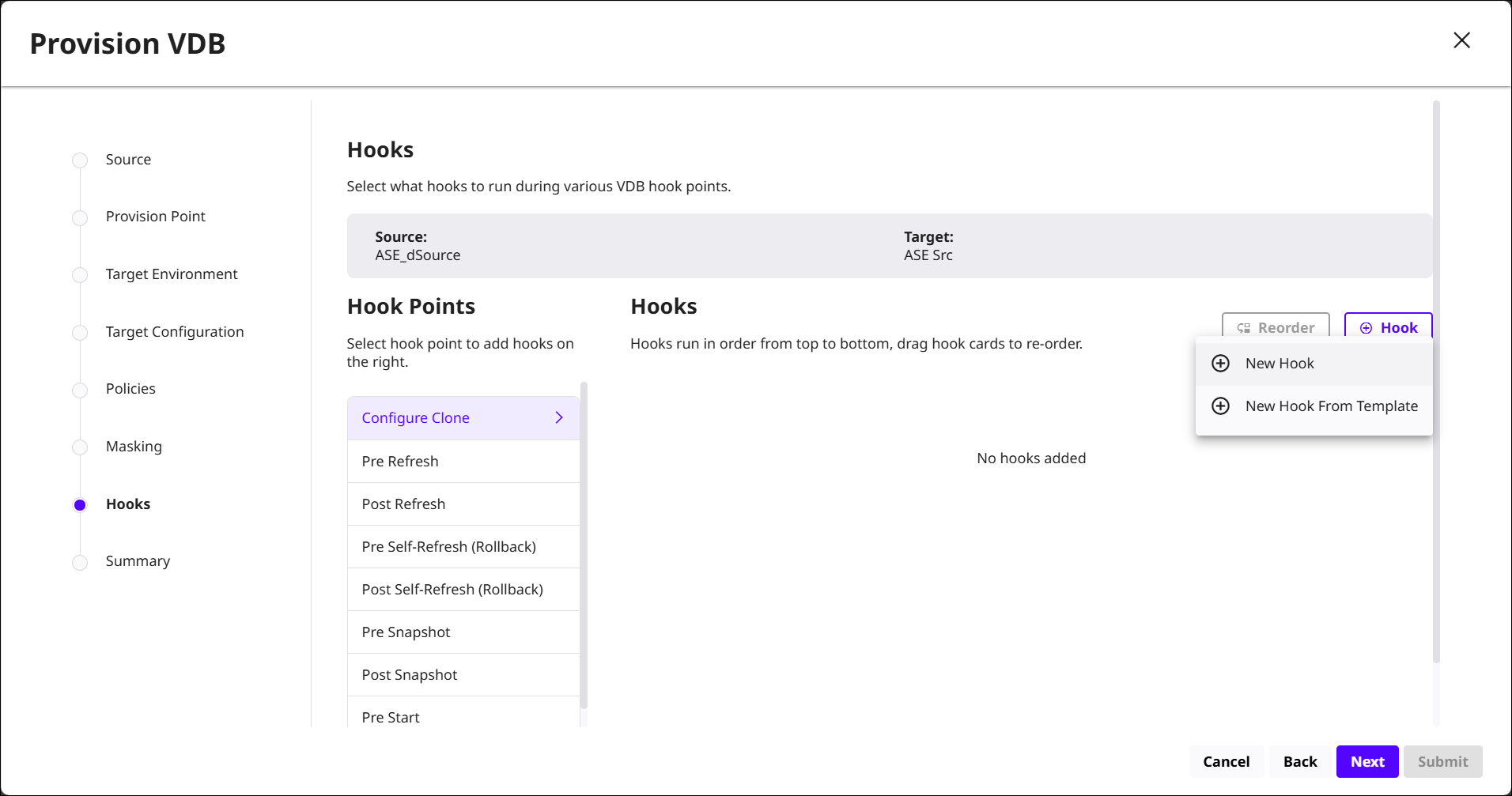
Enhance the VDB with custom created Hooks. Use the + Hook button to define the scripts that will execute at various stages of the process, offering greater control and customization capabilities.
-
Summary
Before finalizing, a comprehensive summary of the configurations is shown. Review and confirm the details, assuring they align with the intended setup. The newly provisioned VDB will now appear in the DCT VDB list.