Install and configure
Compatibility
dct-toolkit is available for the following platforms and architectures:
| Platform | Supported architectures |
|---|---|
| Linux | x86 64-bit, ARM 64-bit |
| macOS | x86 64-bit, ARM 64-bit |
| Windows | x86 64-bit |
To run dct-toolkit on other operating systems such as AIX, use a bastion host or SSH into a supported Linux system to run commands remotely.
Download dct-toolkit
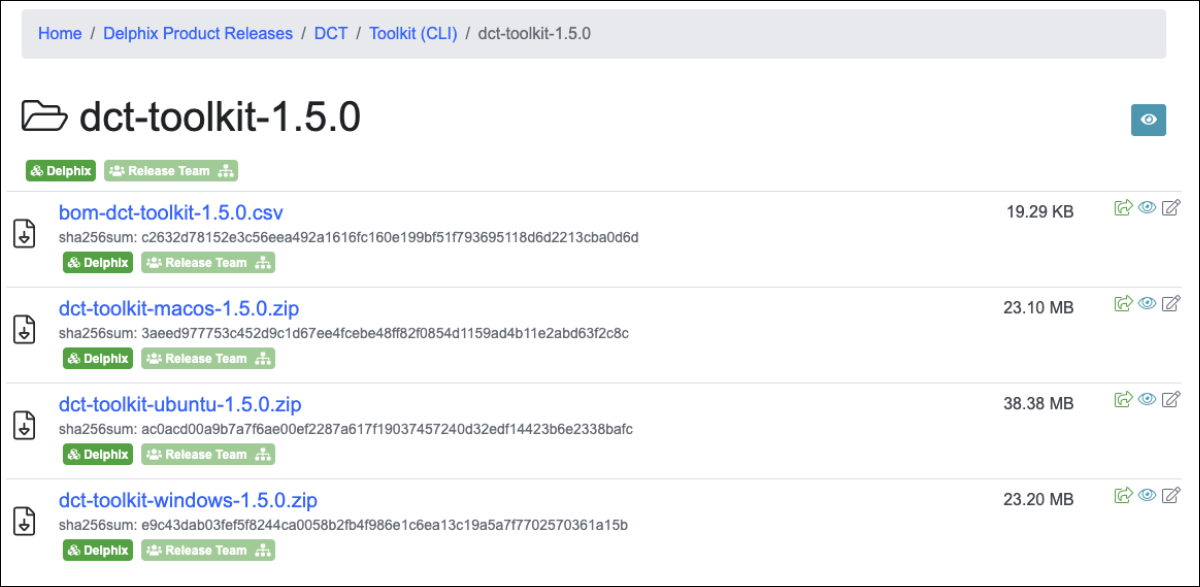
The dct-toolkit is only available as a packaged version of the executable file and is available from the official Delphix download site. Navigate to Delphix Product Releases > DCT > Toolkit (CLI).
Installation
-
Extract the zip file
Use the
unzipcommand or Windows Explorer to extract the dct-toolkit executable. If needed, move it to a directory included in the command path. -
Grant execute permission
On Linux or macOS, open a terminal and run:
Copychmod 777 ./dct-toolkitOn Windows, run the following from an elevated Command Prompt or PowerShell to grant full control to a specific user:
Copyicacls .\dct-toolkit.exe /grant "<username>:F"Replace
<username>with the appropriate Windows user account name. TheCACLScommand is deprecated and may return errors on current Windows versions.Depending on the Windows environment, you may also need to install the Microsoft Visual C++ Redistributable for Visual Studio 2015, 2017, and 2019. This may be required if double-clicking
dct-toolkit.exereturns aVCOMP110.dllerror. -
Initial setup (create configuration file)
Use the
create_configcommand to create a configuration file that registers the DCT instance to access and the API key to use for authentication. By default, this command creates a file nameddct-toolkit.propertiesin$HOME/.dct-toolkitor, in Windows, in.dct-toolkitunder the user directory.You can predefine the configuration file directory by setting the
DCT_TOOLKIT_CONFIG_FILEenvironment variable, or specify it at runtime withcreate_config configFileOutputLocation=XXXX.Copy$ dct-toolkit create_config dctUrl=https://10.160.1.170/dct apiKey=2.ih3WU2HbpbCeeLDirImuxxxxxxxxxxxxxxxx --insecureSSL --unsafeHostnameCheck
Config file created successfully at : /home/dctadmin/.dct-toolkit/dct-toolkit.properties
$ ls -l .dct-toolkit/
total 4
-rw-rw-r-- 1 dctadmin dctadmin 277 Mar 18 14:07 dct-toolkit.properties
$ cat .dct-toolkit/dct-toolkit.properties
#file created from create_config command
#Tue Mar 18 14:07:04 JST 2025
api.key=QuLT09SgT0zwxqHMvUknSyNJ2J58TR3idKJCJ4jPaw3eHbYmL7BcPauoJetFkzrqxxxxxxxxxxxxxxxxxxxxxxxxx=
ssl.unsafe.hostname.check=true
ssl.insecure=true
dct.url=https\://10.160.1.170/dctTo view all available configuration options, run
dct-toolkit create_config -h. Configuration properties can also be set individually using environment variables, which is useful for separating non-sensitive properties in a file from sensitive ones likeapiKey.Once configured, run
dct-toolkit -hto confirm setup was successful. If the command list appears, the toolkit is ready to use. -
Upgrade
To upgrade dct-toolkit, download the new version and replace the existing executable. Configuration files are preserved and do not need to be recreated.
Troubleshooting
The following errors may appear when running create_config.
| Error message | Cause and resolution |
|---|---|
Cannot read api spec from location : <DCT_URL>static/api-external.yaml
|
The DCT instance has an invalid certificate or insecure connection. Run create_config again with --insecureSSL and/or --unsafeHostnameCheck to bypass certificate validation. |
Cannot read api spec from : ApiSpecLocation[location=<DCT_URL>/static/api-external.yaml, isRemoteLocation=true]
|
The specified DCT URL is incorrect and the toolkit cannot retrieve the API spec. To confirm, open <DCT_URL>/static/api-external.yaml in a browser. If the URL is valid, the spec file appears. If the toolkit still fails, confirm that the machine running dct-toolkit has network access to the DCT instance. |