Configuring AI providers and features
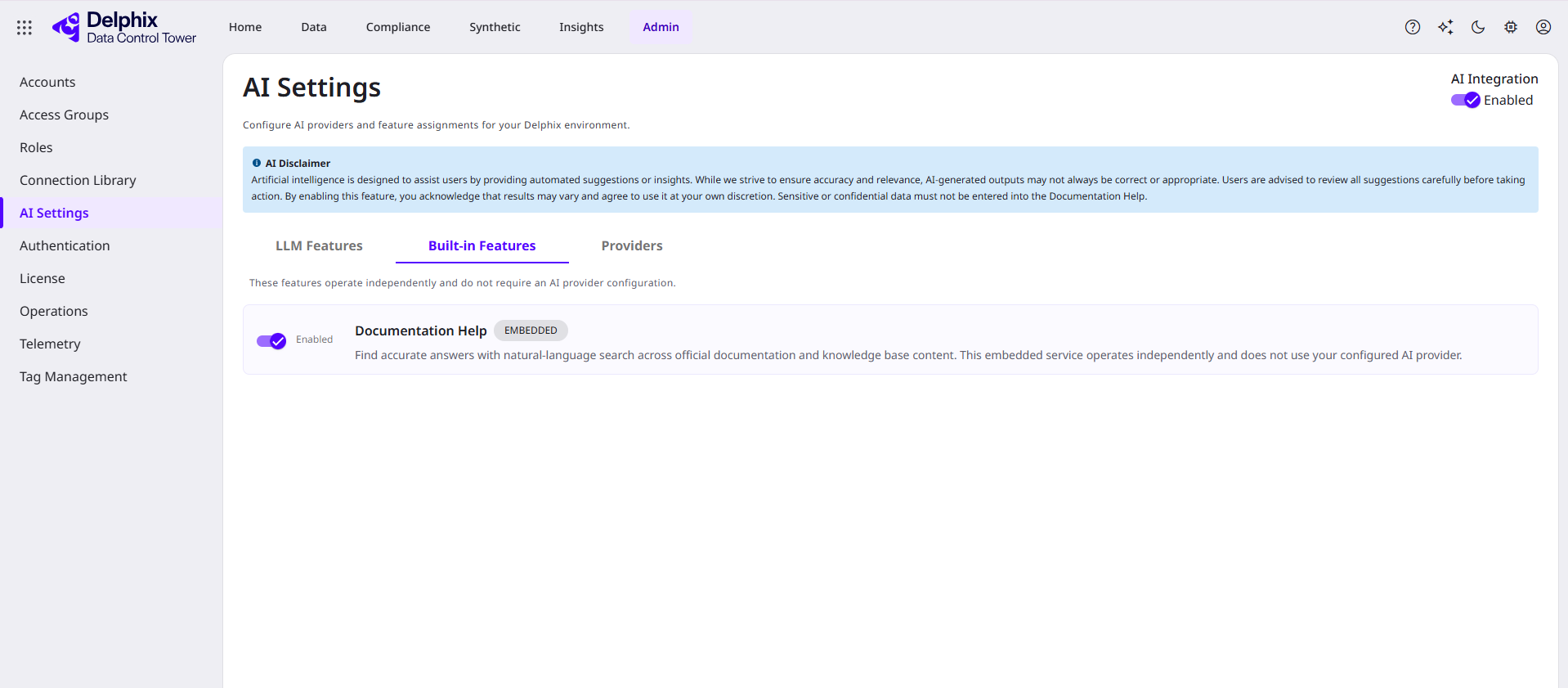
AI functionality in DCT is configured from Admin > AI Settings. From this page you can enable AI, register one or more AI providers, and assign a provider to each AI-driven feature. The page is organized into three tabs:
-
LLM Features: AI-driven capabilities that require a language model (LLM) provider, such as Secure Lookup and Data Classification. Each feature is assigned to a registered provider.
-
Built-in Features: features that operate independently and do not require you to configure an LLM provider, such as Documentation Help.
-
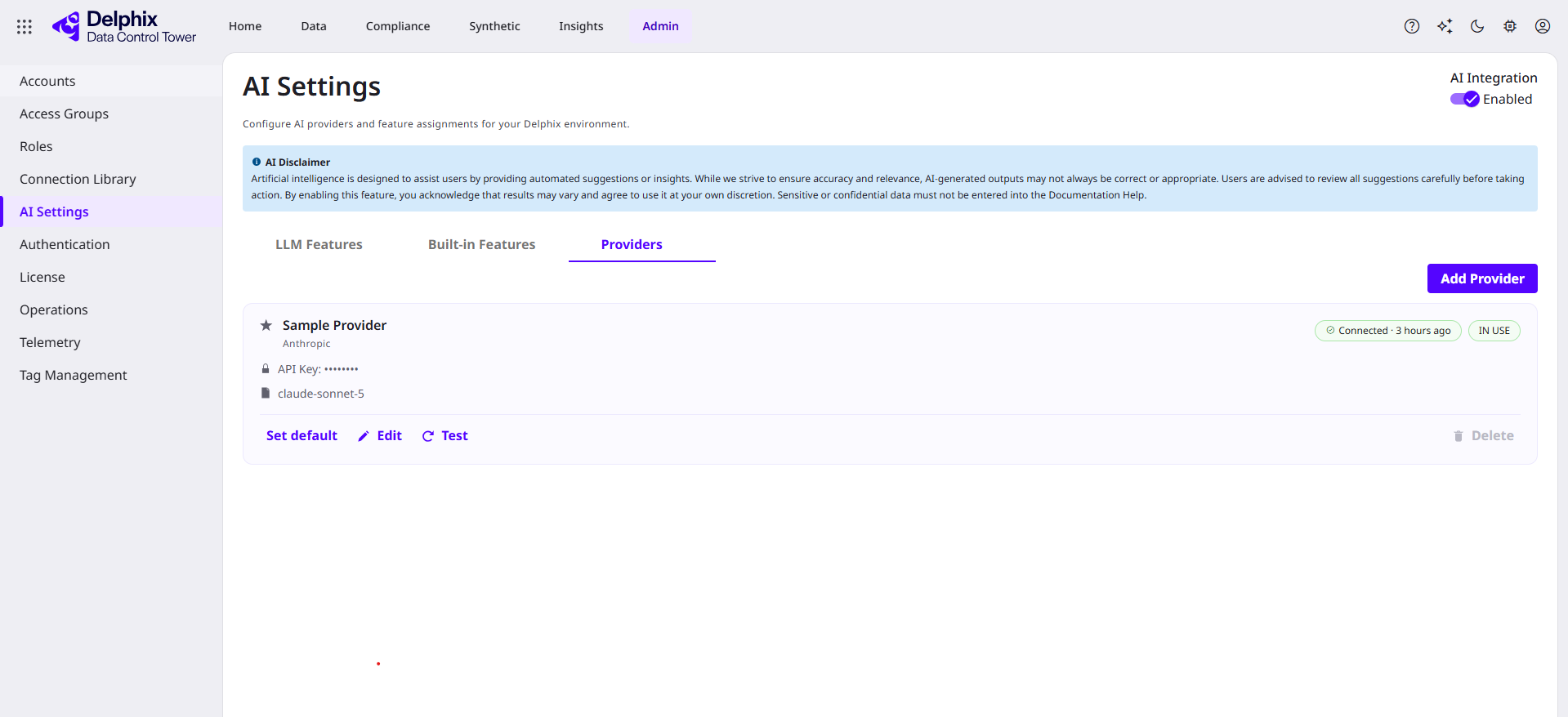
Providers: The registry where you add and manage the AI providers that power LLM Features.
Before you can configure providers, the AI Services runtime must be deployed and running; see Enabling AI Services.
Prerequisites
Meet the following conditions before you configure AI providers and features:
-
You must be using DCT Enterprise and have Platform System Administrator permissions.
-
AI Services must be deployed and running. See Enabling AI Services.
-
To use the Embedded provider, you must access the Delphix Download Center to retrieve the model file.
-
To use an external provider (such as Anthropic or OpenAI), DCT must have outbound HTTPS connectivity to the provider endpoint, and you must have the provider credentials.
AI Integration
The AI Integration toggle in the top-right corner of Admin > AI Settings is the master switch for all AI functionality in DCT, including Documentation Help. It is enabled by default, primarily so that Documentation Help is available out of the box. Disabling it turns off all AI features, including Documentation Help, although your provider configurations and feature assignments are preserved. Confirm it is enabled before you configure providers and features.
Registering AI providers
Register one or more providers on the Providers tab before assigning them to features. You can register multiple configurations of the same provider type (for example, separate configurations for different accounts or regions). Each configuration has a friendly Name that you choose.
|
Provider type |
Description |
Required configuration |
|---|---|---|
|
Embedded |
A Delphix-distributed model that runs locally within your DCT deployment on CPU only, with no external network access. |
Uploaded model file |
|
Anthropic |
Anthropic's commercial LLM service, accessed over the network via API. |
API key; optional custom endpoint URL |
|
OpenAI |
OpenAI's commercial LLM service, or a private OpenAI-compatible instance. |
API key; optional custom endpoint URL |
|
Hosted Ollama |
A self-hosted inference server on your network that exposes an OpenAI-compatible API. Despite the name, this type works with any OpenAI-compatible server (Ollama, vLLM, LM Studio, and others), not only Ollama. |
Endpoint URL (including the |
Adding an Embedded provider (local model upload)
The Embedded provider runs a Delphix-distributed model locally within your DCT deployment (CPU only, with no external network access). Only Delphix-distributed models are supported; these are prepackaged and pre-quantized for efficient CPU-based processing. Delphix recommends the q6K or q80 quantization variants of the Meta Llama 3.2 3B model for the best balance of quality and performance. To run other models, register an external or self-hosted provider instead. Include the attribution "Built with Meta Llama 3" in compliance and audit documentation where applicable. For embedded model resource requirements and performance impact, see Enabling AI Services.
To add an Embedded provider and upload the model:
-
Log in to the Delphix Download Center and download the certified AI model file. The file is approximately 3.2 GB; no model ships with DCT by default. Handle the file in accordance with your organization's file management policies.
-
On the Providers tab, click Add Provider.
-
Enter a Name for the configuration and select Embedded as the Provider Type.
-
Click to browse, or drag and drop the downloaded model file into the upload area.
-
Optionally, select Set as default provider to use this provider for feature assignment by default.
-
Click Create to begin the upload. Uploading a new model replaces any existing embedded model.
If a model upload fails, review Admin > Operations for an operation of type LLM Upload Model to determine why it failed. On Kubernetes, confirm the model-upload ingress is configured (see Enabling AI Services).
Adding an external or self-hosted provider
External providers (such as Anthropic or OpenAI) and self-hosted, OpenAI-compatible model servers are added the same way. These providers send requests over the network to the configured endpoint.
-
On the Providers tab, click Add Provider.
-
Enter a Name and select the Provider Type.
-
Enter the required credentials for the provider type:
-
Anthropic or OpenAI: enter an API Key. Optionally, provide a custom endpoint URL to use a private or compatible instance.
-
Hosted Ollama (any OpenAI-compatible server): enter the endpoint URL, including the
/v1path suffix (for example,http://host.docker.internal:11434/v1). Enter an API key if the server requires one; if it does not, enter a placeholder value.
-
-
Click Fetch available models and select a default Model.
-
Optionally, select Set as default provider, then click Create.
After a provider is saved, use Test to verify connectivity, Edit to update credentials or model selection, and Set default to change the default provider. A provider that is assigned to a feature cannot be deleted until the assignment is removed.
Assigning providers to features
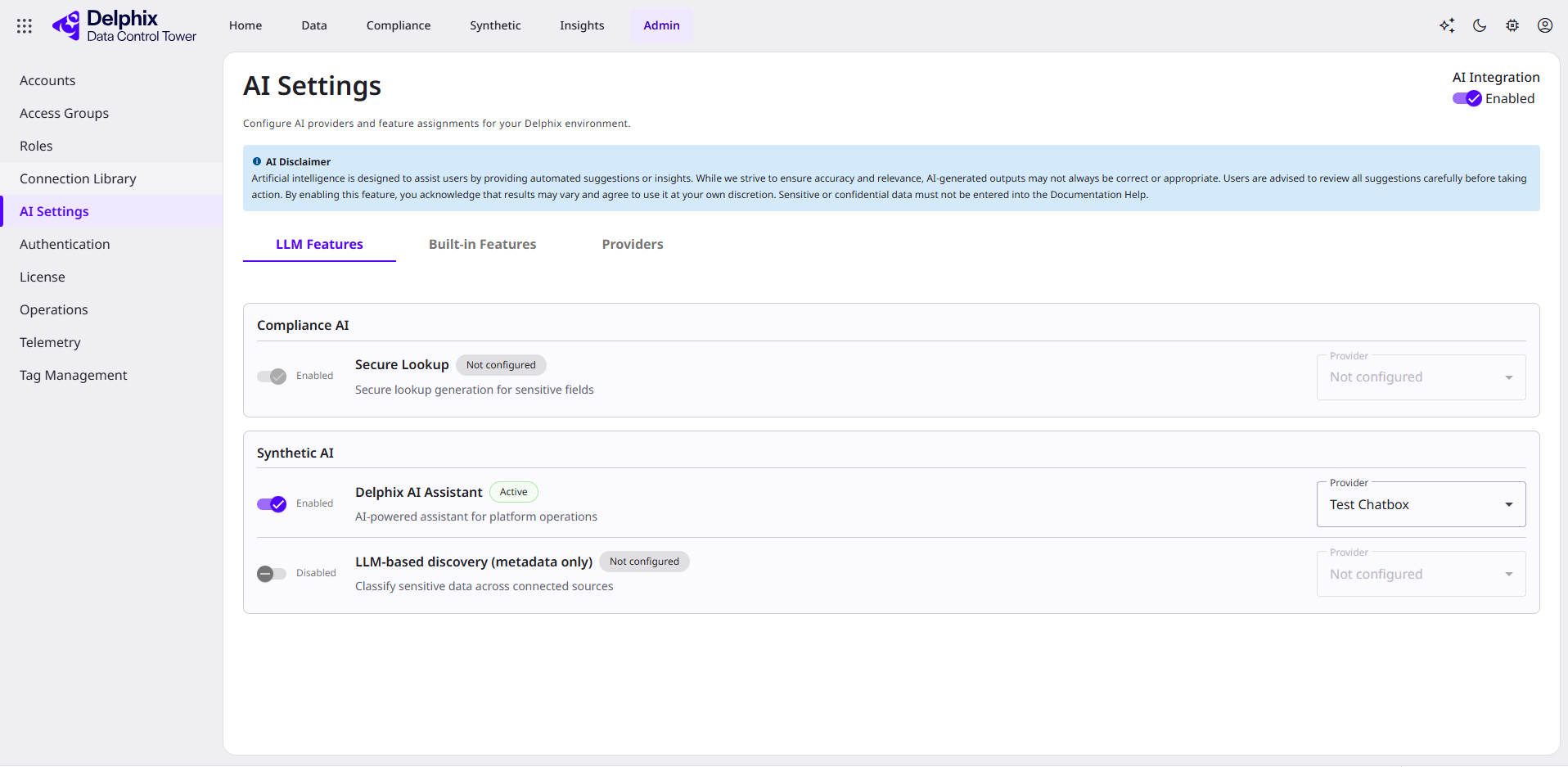
On the LLM Features tab, assign a registered provider to each AI-driven feature. Features are grouped by product domain; the specific features available depend on your DCT version. Current features include:
-
Compliance AI
-
Secure Lookup: generates secure lookup lists for masking sensitive fields. See Secure Lookup Lists.
-
-
Synthetic AI
-
Delphix AI Assistant: an assistant that helps you perform activities within DCT.
-
LLM-based discovery (metadata only): classifies sensitive data across connected sources using metadata only.
-
For each feature:
-
Toggle the feature Enabled or Disabled.
-
Select a Provider. A feature is assigned to exactly one provider.
-
Select a Model, or use the provider's default.
If you marked a provider as the default (Set as default provider), it is used automatically and preselected when you enable a feature. If no default is set, assign a provider to each feature individually.
A feature with no assigned provider shows a status of Not configured. It remains visible in AI Settings but is not available to end users until a provider is assigned. Once a provider and model are assigned and the feature is enabled, its status changes to Active.
Built-in features
The Built-in Features tab lists features that operate independently and do not require an AI provider configuration. Documentation Help is enabled by default and can be disabled at any time. For details, see Documentation Help.