Password vault support
Action required: The Continuous Data UI, API, and CLI are scheduled for end of life. Review the latest migration guidance and start planning your transition to Data Control Tower.
On new engine installations of 2026.5.0.0 and later, the Admin UI opens directly to the Performance Dashboard, and the Manage, Resources, and System menus are unavailable. Engines upgraded from an earlier version keep full Admin UI access. This restriction cannot be changed by customers; contact Delphix Support if you need it lifted temporarily.
Learn more about the Continuous Data end-of-life announcement.
Many organizations use Enterprise Password Vaults (EPV) such as CyberArk and HashiCorp Vault to store and centrally manage identities and credentials. Delphix has added CyberArk, HashiCorp and Azure Key Vault support to the Delphix Virtualization Engine as a new authentication option for environments and databases. This minimizes the number of places where credentials need to be stored and, therefore the risk of insecure storage.
The Delphix Engine uses various authentication methods such as username/password, username/ssh key, and Kerberos credentials when connecting to hosts and databases from the Engine. These credentials are stored on the Delphix Engine in an encrypted format and can be retrieved later to perform various operations. Delphix provides an additional authentication method by integrating Virtualization with the most common vault types (CyberArk, HashiCorp. Azure Key Vault). At runtime, Delphix retrieves the credentials (passwords, ssh keys) from the customer's vault servers via API calls and avoids managing customer passwords.
Configure password vaults
In the Setup app, system administrators can manage (add, delete, modify, and validate) vault configurations during and after the initial setup. Each engine can have multiple vaults configured of any type.
Delphix integrates with CyberArk using the Central Credential Provider (CCP), a CyberArk component that exposes a REST API for application credential retrieval. CCP is the mechanism CyberArk recommends for appliance-type integrations that cannot use an agent. The Delphix Engine calls the CCP REST API at runtime to retrieve credentials using client-certificate authentication. Configuring a CyberArk vault in Delphix requires the CCP host address, port number, an application ID registered in CyberArk, and a client certificate (certificate chain and private key) issued for that application.
The authentication methods supported for HashiCorp vaults are Token-based, AppRole-based, and Certificate-based. Configuring a HashiCorp vault requires providing a token ID or a role ID and secret ID or a client certificate along with the host address and port number. For HashiCorp Enterprise vaults, a namespace can also be provided.
The authentication method supported for Azure Key Vault is Client-Secret-based. Configuring an Azure Key Vault requires providing the Azure tenant ID, client ID, and client secret.
Use password vaults
The Virtualization engine retrieves credentials at runtime from a vault using a unique identifier that locates a set of credentials in a configured vault. This occurs for any activity that requires Environment access (SnapSync, Validated Sync, LogSync, as well as Environment monitoring). This may result in a significant number of requests, so evaluate and adjust any existing connection rate limits accordingly. For CyberArk, the unique identifier consists of a query string. For HashiCorp Vault, it consists of four parameters: engine, path, and a pair of keys that locate the username and secret (password or SSH key) in the key-value store at that engine and path. For Azure Key Vault, it consists of the Azure Vault Name (also known as the Resource Name within Azure Vault, not to be confused with the vault name that identifies the vault in the engine), username key, and secret key.
To set up an environment or database user to use a vault, use the credential type VaultCredential when adding/modifying such users and specify the vault and the unique identifier of the credentials.
Roles and privileges for CyberArk and HashiCorp users
|
Role |
Privileges |
|---|---|
|
System Administrator |
Can add, modify, delete, and list vault configurations. |
|
Delphix Administrator |
Can list existing vault configurations and link environment and database users to vault credentials. |
Supported environments and databases
All environment users can use vault credentials. For Windows, the initial link via the Delphix Connector does not support vaults, but environment users can be subsequently updated to use vaults.
Vault integration is currently supported for SAP ASE database users, Oracle database users, and MSSQL domain users using 6.0.4 and later.
Set up a vault via GUI
Complete setup via the GUI is available for CyberArk as of 6.0.3.0, for HashiCorp as of 6.0.4.0 and for Azure Key Vault as of 10.0.0.0.
-
Connect to the Delphix Engine at
http://<Delphix Engine>/login/index.html#serverSetup. -
Add a CyberArk or HashiCorp CA certificate to the TrustStore as part of the initial configuration. Read TrustStore settings for steps to add a CA certificate.
-
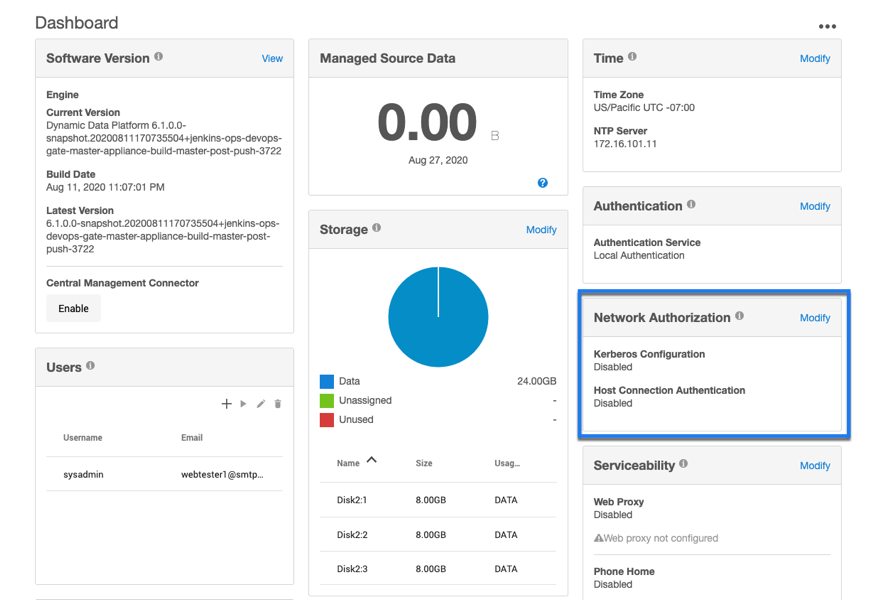
Click the Modify link in the top right of the Network Authorization panel.
-
On the Network Authorization window, click "+" to add a new vault.
-
Enter the following information. Depending on your requirements, you can set the configurations for CyberArk, HashiCorp, or Azure Key Vault.
Field
Possible value and Data Type
Description
Vault Type - CyberArk
Vault Name
<user-specified>
Accepts a string value
Specifies the user-specified vault name
Vault Hostname
Accepts a URL string value
Specifies the location of the user's vault server
Port
443
Accepts an integer value
Specifies the port number through which the communication will happen
App ID
MyAppID
Accepts a string value
Specifies an application ID registered with and provided by CyberArk
Authentication Certificate
——-BEGIN CERTIFICATE—-—
<certificate>
——-END CERTIFICATE—-—
Accepts a string value
Specifies the authentication certificate provided by CyberArk
Private Key
<CyberArk-provided>
Accepts a string value
Specifies the private key provided by CyberArk for TLS based authentication
Vault-Type - HashiCorp
Authentication method
Token
Description
Vault Name
<user-specified>
Accepts a string value
Specifies the user-specified vault name
Vault Hostname
12.345.678.90
Accepts a URL string value
Specifies the location of the customer vault server
Port
8100
Accepts an integer value
Specifies the port number through which the communication will happen
Vault Namespace
purple
Accepts a string value
Specifies the namespace configuration specific to the user environment that is provided by the HashiCorp Enterprise Platform
Token
s.abcdefghijklmnopqrstuvwxyz123.waR7a
Accepts a string value
Specifies the token specific to the user environment that is provided by the HashiCorp Enterprise Platform
Authentication method
AppRole
Description
Vault Name
<user-specified>
Accepts a string value
Specifies the user-specified vault name
Vault Hostname
12.345.678.90
Accepts a URL string value
Specifies the location of the customer vault server
Port
8100
Accepts an integer value
Specifies the port number through which the communication will happen
Vault Namespace
purple
Accepts a string value
Specifies the namespace configuration specific to the user environment. This feature is provided with the HashiCorp Enterprise Platform
RoleID
abcdefg123-4a56-7890-a2bc-34567def8901
Accepts a string value
Specifies the RoleID specific to the user environment
SecretID
ab1cde0f-123g-4h56-i789-1234jk567890
Accepts a string value
Specifies the SecretID specific to the user environment
Authentication method
Certificate
Description
Vault Name
<user-specified>
Accepts a string value
Specifies the user-specified vault name
Vault Hostname
12.345.678.90
Accepts a URL string value
Specifies the location of the customer vault server
Port
8100
Accepts an integer value
Specifies the port number through which the communication will happen
Vault Namespace
purple
Accepts a string value
Specifies the namespace configuration specific to the user environment. This feature is provided with the HashiCorp Enterprise Platform
Authentication Certificate
——-BEGIN CERTIFICATE—-—
<certificate>
——-END CERTIFICATE—-—
Accepts a string value
Specifies the authentication certificate provided by HashiCorp for TLS based authentication
Private Key
abcdefg123-4a56-7890-a2bc-34567def8901
Accepts a string value
Specifies the private key specific to the user environment that is provided by HashiCorp for TLS based authentication
Role Name
(Optional)purple-admin-role
Accepts a string value
Specifies the certificate role name for TLS based authentication
-
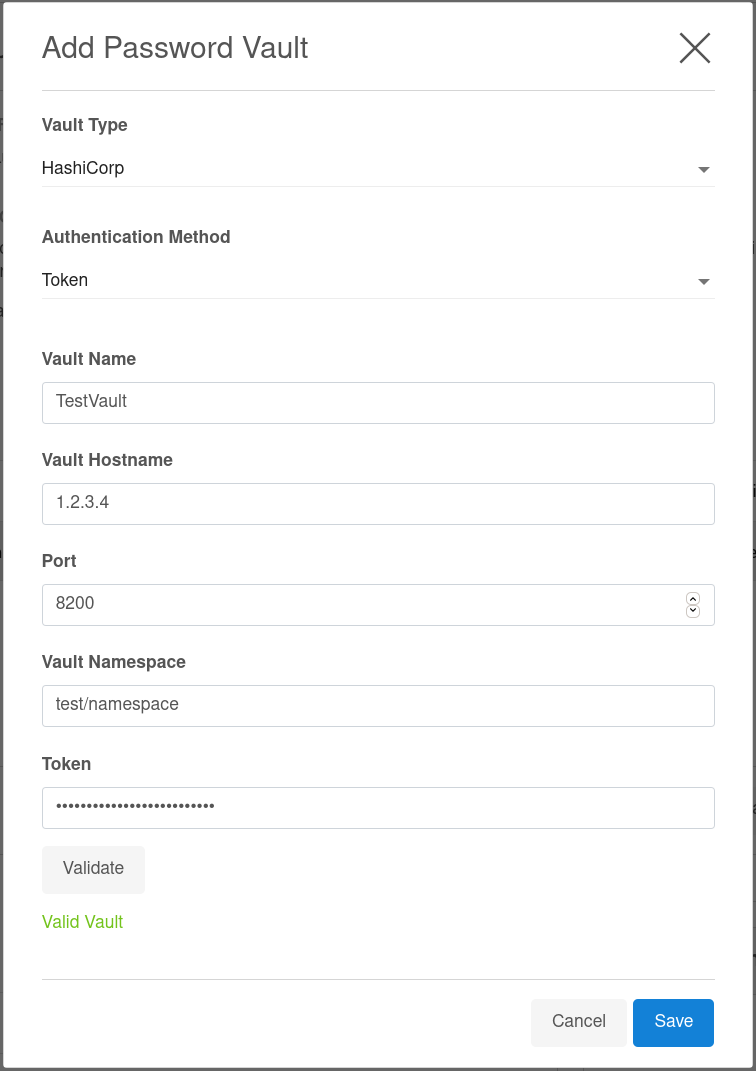
Click Validate to check the configurations before saving the vault details. The below screenshot shows an example of the HashiCorp Vault configuration.
-
Click Save.The added configurations can be viewed in the Network Authorization window.
Edit a vault via the GUI
-
Connect to the Delphix Engine http:// <Delphix Engine>/login/index.html#serverSetup.
-
Click the Modify link in the top right of the Network Authorization panel.
-
In the Network Authorization window, select a vault, then the pencil icon.
-
Edit your configuration.
-
Select Edit.
Delete a vault via the GUI
-
Connect to the Delphix Engine http:// <Delphix Engine>/login/index.html#serverSetup.
-
Click the Modify link in the top right of the Network Authorization panel.
-
In the Network Authorization window, select a vault, then select the trashcan icon.
-
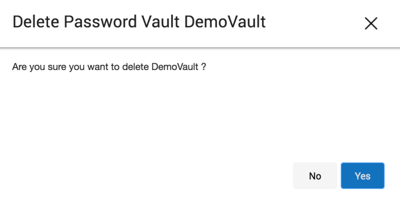
Select Yes to delete the vault.
Add a host user for HashiCorp
-
Log in to the Delphix Management Application and select Manage > Environments.
-
Select Add Environment.
-
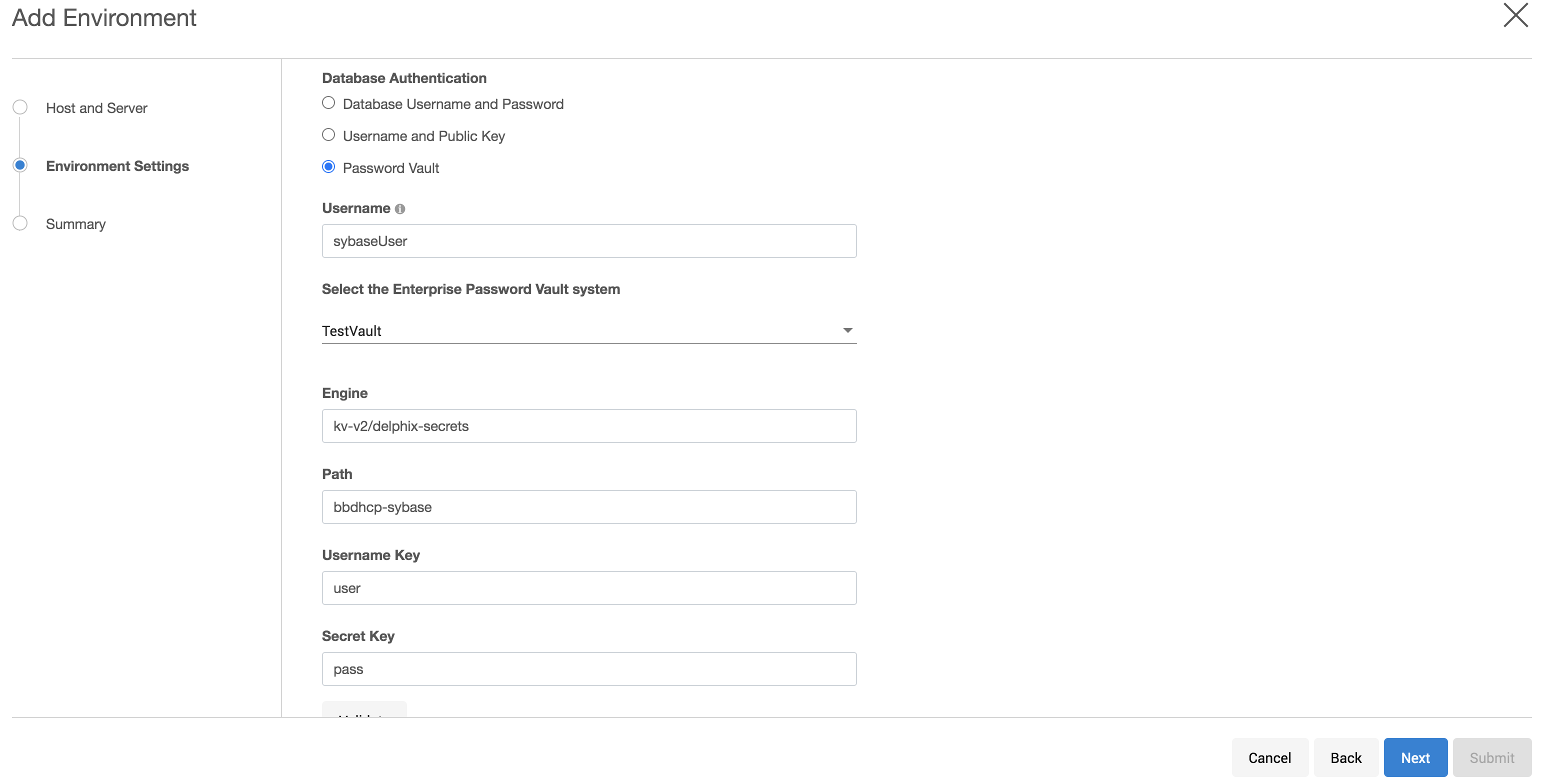
In the Environment Setting tab, select Password Vault as the Login Type.
-
Select the vault configuration and provide the secret engine name, path, and keys for the username secret and complete your environment configuration.
-
The environment will be created with the primary user using vault credentials.
Add a database user for HashiCorp
-
Log in to the Delphix Management Application.
-
Add dSource using database credentials from HashiCorp vault by selecting Password Vault as the Login Type.
-
Provide the appropriate secret engine name, path, and keys for the username secret and complete configuration.
Add a host user for CyberArk
-
Log in to the Delphix Management Application and select Manage > Environments.
-
Select Add Environment.
-
In the Environment Setting tab, select Password Vault as the Login Type.
-
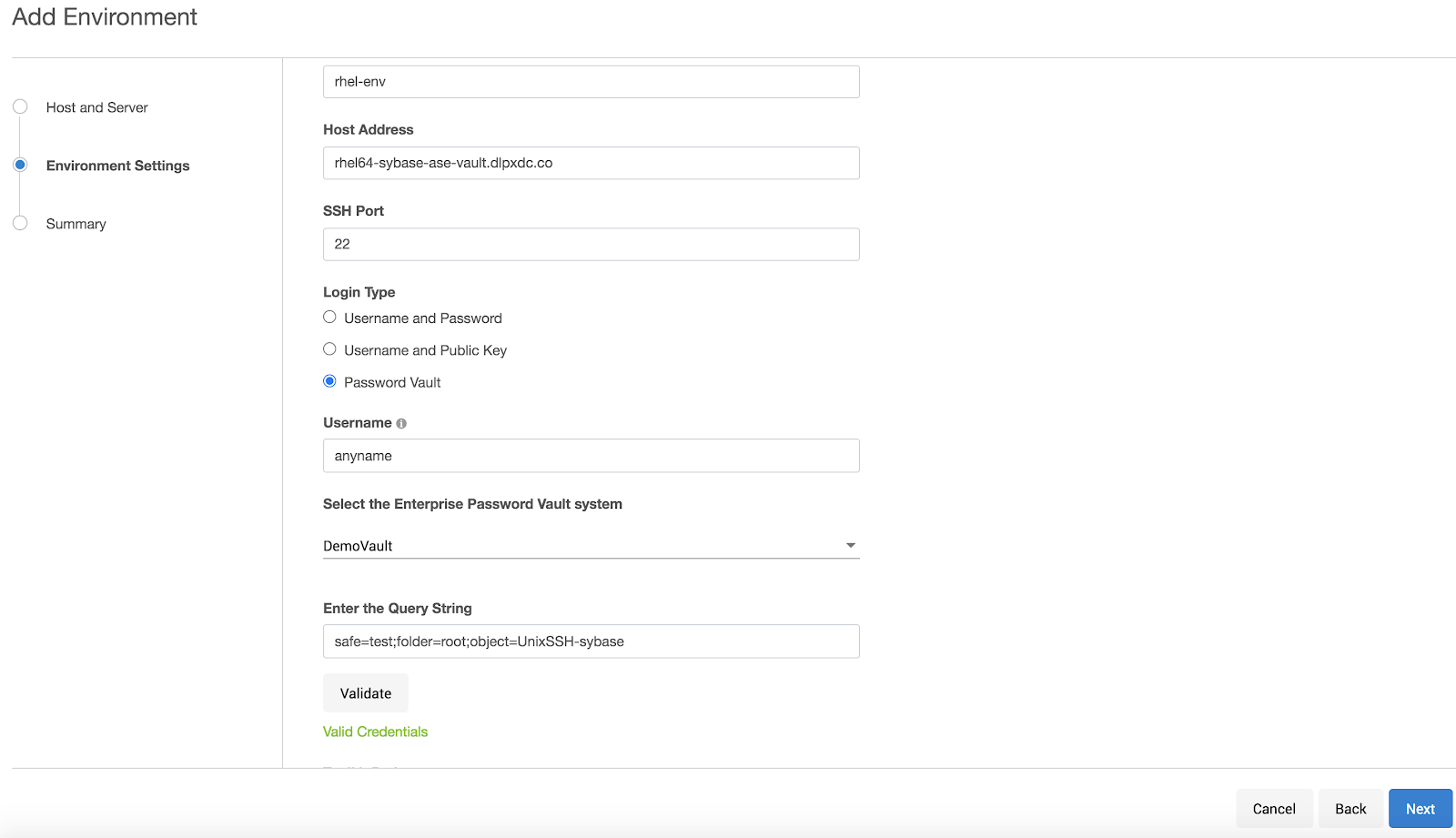
Select the vault configuration and provide the username, select the enterprise password vault system, and enter a query string that is a unique identifier pointing to the credentials to be retrieved and complete your environment configuration.
-
The environment will be created with the primary user using vault credentials.
Add a database user for CyberArk
-
Log in to the Delphix Management Application.
-
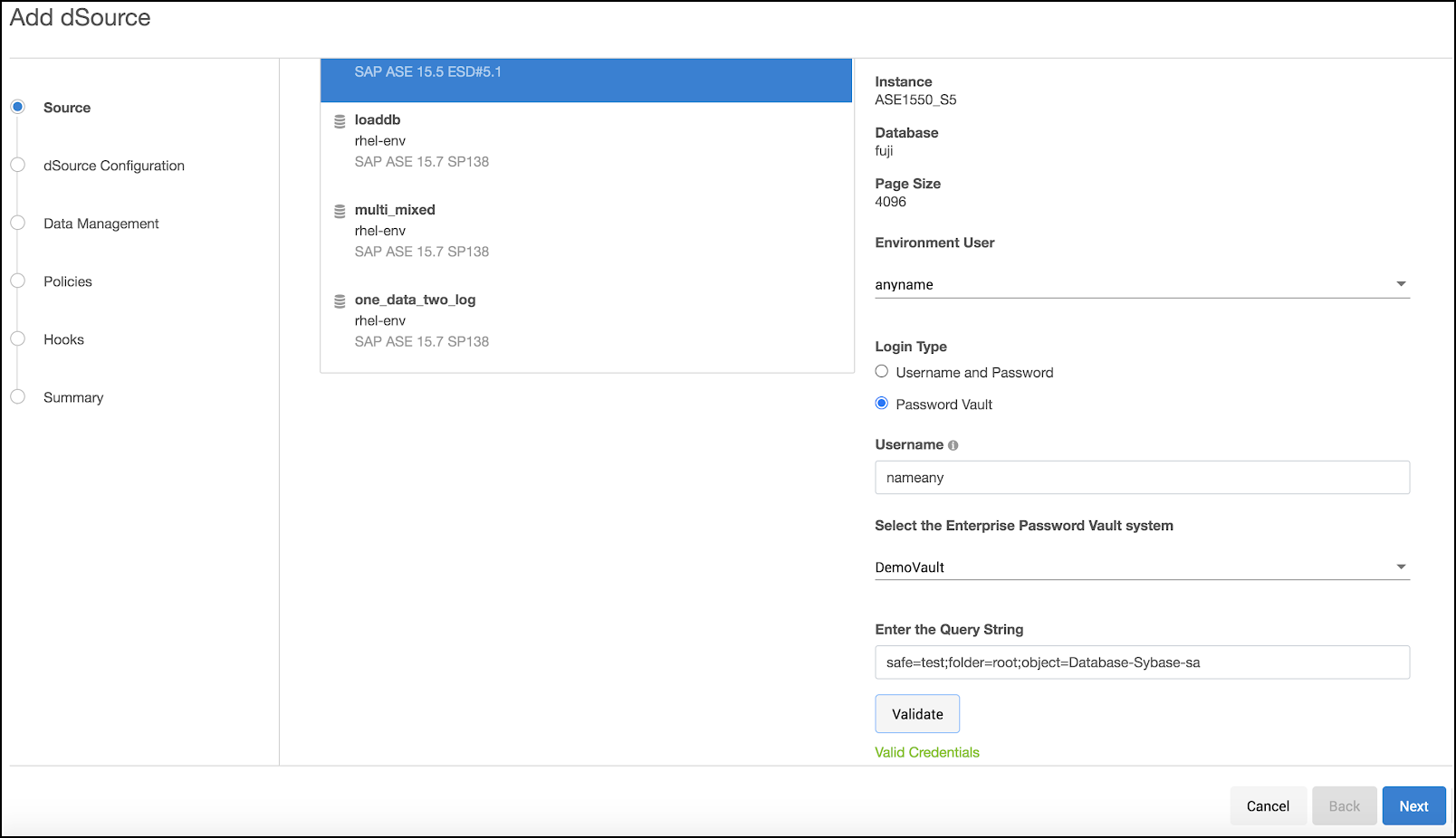
Add dSource using database credentials from CyberArk vault by selecting Password Vault as the Login Type.
-
Provide the appropriate query string and complete configuration.
Set up a vault via CLI
-
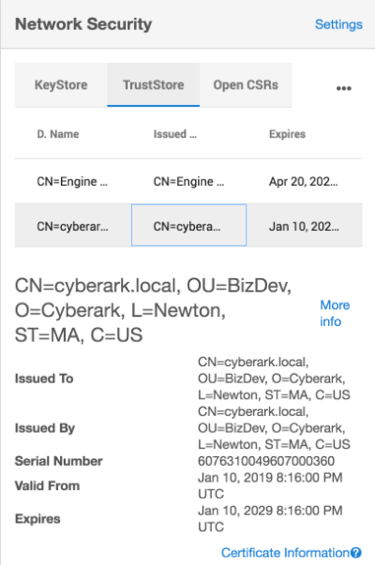
Log in as a system administrator and add a CyberArk or HashiCorp CA certificate to the TrustStore as part of the initial configuration.
-
SSH to <Delphix Engine IP>service passwordVault and enter create.
Copydelphix-engine service passwordVault>create -
Add a new vault configuration by entering a name, host, port, applicationId, client certificate, and private key.
Copydelphix-engine service passwordVault create
Properties
type: CyberArkPasswordVault
name: DemoVault (*)
applications: MyApplication (*)
clientCertificate:
type: PemClientCertificate (*)
clientCertificateChain: (required)
privateKey:(required)
host: cyberark.example.com (*)
port: 17993 (*) -
Add a new HashiCorp vault configuration by entering a name, host, port, and other authentication information based on the authentication method (Token/AppRole/Certificate) selected.
HashiCorp - Token Based Authentication
Copydelphix-engine service passwordVault create
Properties
type: HashiCorpVault (*)
name: HashiCorpDemoVault (*)
authentication:
type: HashiCorpTokenAuthentication (*)
token: ******** (*)
host: hashicorp.example.com (*)
port: 8200 (*)HashiCorp - AppRole Based Authentication
Copydelphix-engine service passwordVault create
Properties
type: HashiCorpVault (*)
name: HashiCorpDemoVault (*)
authentication:
type: HashiCorpAppRoleAuthentication (*)
roleId: 20d19a46-6fd9-c78b-b7e3-e43be4c8d5c2 (*)
secretId: ******** (*)
host: hashicorp.example.com (*)
port: 8200 (*)HashiCorp - Certificate Based Authentication
Copydelphix-engine service passwordVault create
Properties
type: HashiCorpVault (*)
name: HashiCorpDemoVault (*)
authentication:
type: HashiCorpCertificateAuthentication (*)
clientCertificate:
type: PemClientCertificate (*)
clientCertificateChain: (required)
privateKey: (required)
roleName: (unset)
host: hashicorp.example.com (*)
port: 8200 (*)
Update an existing vault configuration
delphix-engine service passwordVault> select DemoVault
delphix-engine service passwordVault 'DemoVault'>update
delphix-engine service passwordVault 'DemoVault'update *> set name=TestVault
delphix-engine service passwordVault 'DemoVault'update *> commit
delphix-engine service passwordVault 'TestVault'>
Delete an existing vault configuration
delphix-engine service passwordVault 'TestVault'> delete
delphix-engine service passwordVault 'TestVault' delete *> commit
delphix-engine service passwordVault>
Add or modify host users
Add an environment with user credentials from CyberArk vault. When adding a host/database user with a vault credential, the name field would be a user identifier and not the actual username. In case this field is empty, a unique identifier is generated with a hash of vault credentials.
delphix-engine environment create *> set hostEnvironment.name=my-environment
delphix-engine environment create *> set hostParameters.host.address=source-host.example.com
delphix-engine environment create *> set hostParameters.host.toolkitPath="/work"
delphix-engine environment create *> set primaryUser.name=oracleUser
delphix-engine environment create *> set primaryUser.credential.type=VaultCredential
delphix-engine environment create *> set primaryUser.credential.vault=DemoVault
delphix-engine environment create *> set primaryUser.credential.vaultCredentialId="safe-test;folder=root;object=UnixSSH-sybase"
delphix-engine environment create *> commit
    `UNIX_HOST_ENVIRONMENT -6
    Dispatched job JOB-33
    ENVIRONMENT_CREATE_AND_DISCOVER job started for "my-environment".
    ENVIRONMENT_CREATE_AND_DISCOVER job for "my-environment" completed successfully.
Add or modify database users
Add dSource using database credentials from CyberArk vault.
delphix-engine database link *> set name=my-dsource
delphix-engine database link *> set group=Untitled
delphix-engine database link *> set linkData.config=ASE_SI_CONF-70
delphix-engine database link *> set linkData.dbUser=sybaseUser
delphix-engine database link *> set linkData.dbCredentials.type=VaultCredential
delphix-engine database link *> set linkData.dbCredentials.vault=DemoVault
delphix-engine database link *> set linkData.dbCredentials.vaultCredentialId="safe-test;folder=root;object=Database-Sybase-sa"
delphix-engine database link *> set linkData.loadBackupPath="/opt/sybase/dumps"
delphix-engine database link *> set linkData.sourceHostUser=HOST_USER-7
delphix-engine database link *> set linkData.stagingHostUser=HOST_USER-7
delphix-engine database link *> set linkData.stagingRepository=ASE_INSTANCE-6
delphix-engine database link *> set linkData.syncParameters.type=ASENewBackupSyncParameters
delphix-engine database link *> commit
    `ASE_DB_CONTAINER-1
    Dispatched job JOB-39
    DB_LINK job started for "Untitled/my-dsource".
    DB_LINK job for "Untitled/my-dsource" completed successfully.
Update existing database users
Convert an existing database to use vault credentials for the existing database user.
delphix-engine > sourceconfig
delphix-engine sourceconfig > select MyOraDB
delphix-engine sourceconfig "MyOraDB" > update
delphix-engine sourceconfig "MyOraDB" *> set credentials.type=CyberarkVaultCredential
delphix-engine sourceconfig "MyOraDB" *> set credentials.vault=MyVault
delphix-engine sourceconfig "MyOraDB" *> set credentials.queryString="safe-test;folder=root;object=UnixSSH-oracle-db"
delphix-engine sourceconfig "MyOraDB" *> set db_user="Vault-User"
delphix-engine sourceconfig "MyOraDB" *> commitPassword vault cache
Password vault caching is enabled by default in versions 24.0.0.0 and newer. In older versions, if you want to reduce the number of vault access requests by the engine, you can enable caching in the vault configuration. To do this, enable the feature flag PASSWORD_VAULT_CACHE and set each vault's cacheEnabled to true, along with the desired cacheExpiryTimeMinutes value.
delphix-engine service passwordVault create *> ls
Properties
    type: AzureVault
    name: (required)
    azureAuthentication:
        type: AzureCertificateAuthentication
        clientCertificate:
            type: KeystoreClientCertificate
            token: (required)
        clientId: (required)
        tenantId: (required)
    cacheEnabled: false
    cacheExpiryTimeMinutes: (unset)

delphix-engine service passwordVault> select DemoVault
delphix-engine service passwordVault 'DemoVault'> update
delphix-engine service passwordVault 'DemoVault' update *> set cacheEnabled=true
delphix-engine service passwordVault 'DemoVault' update *> set cacheExpiryTimeMinutes=5
delphix-engine service passwordVault 'DemoVault' update *> commit
delphix-engine service passwordVault 'DemoVault'>
Setting up Vault via API
The vault API allows users to add, modify, delete, and list vault configurations and retrieve user credentials on a Delphix Engine.
Endpoint - https://<Delphix Engine IP>/resources/json/delphix/service/passwordVault
Sample API request
{
    "type": "CyberArkPasswordVault",
    "name": "DemoVault",
    "host": "cyberark.example.com",
    "port": 17993,
    "applicationId": "MyApplication",
    "clientCertificate": {
        "type": "PemClientCertificate",
        "privateKey": "-----BEGIN PRIVATE KEY-----<>-----END PRIVATE KEY-----",
        "clientCertificateChain": {
            "type": "PemCertificateChain",
            "chain": [
                {
                    "type": "PemCertificate",
                    "contents": "-----BEGIN CERTIFICATE-----<>-----END CERTIFICATE-----"
                }
            ]
        }
    }
}
Delete an existing vault configuration
{
    "type": "CyberArkPasswordVault",
    "name": "DemoVault",
    "host": "cyberark.example.com",
    "port": 17993,
    "applicationId": "MyApplication",
    "clientCertificate": {
        "type": "PemClientCertificate",
        "privateKey": "-----BEGIN PRIVATE KEY-----<>-----END PRIVATE KEY-----",
        "clientCertificateChain": {
            "type": "PemCertificateChain",
            "chain": [
                {
                    "type": "PemCertificate",
                    "contents": "-----BEGIN CERTIFICATE-----<>-----END CERTIFICATE-----"
                }
            ]
        }
    }
}
Add or modify host users
Add an environment with user credentials from CyberArk vault. When adding a host/database user with a vault credential, the name field would be a user identifier and not the actual username. In case this field is empty, a unique identifier is generated with a hash of vault credentials.
{
    "type": "HostEnvironmentCreateParameters",
    "primaryUser": {
        "type": "EnvironmentUser",
        "credential": {
            "type": "VaultCredential",
            "vault": "CYBERARK_PASSWORD_VAULT-1",
            "vaultCredentialId": "safe=test;folder=root;object=UnixSSH-sybase"
        }
    },
    "hostEnvironment": {
        "type": "UnixHostEnvironment",
        "name": "my-environment"
    },
    "hostParameters": {
        "type": "UnixHostCreateParameters",
        "host": {
            "type": "UnixHost",
            "address": "source-host.example.com",
            "toolkitPath": "/work"
        }
    }
}
Add or modify database users
Add dSource using database credentials from CyberArk vault.
The following is a sample API link request for an MSSQL domain user.
{
    "type": "LinkParameters",
    "name": "ReportServer",
    "group": "GROUP-1",
    "linkData": {
        "type": "MSSqlLinkData",
        "config": "MSSQL_SINGLE_CONFIG-5",
        "sharedBackupLocations": [],
        "encryptionKey": "",
        "sourceHostUser": "HOST_USER-3",
        "mssqlUser": {
            "password": {
                "type": "VaultCredential",
                "vault": "CYBERARK_PASSWORD_VAULT-2",
                "vaultCredentialId": "safe=test;folder=root;object=Database-MSSql-domainuser"
            },
            "type": "MSSqlDomainUser"
        },
        "pptRepository": "MSSQL_INSTANCE-4",
        "pptHostUser": "HOST_USER-3",
        "ingestionStrategy": {
            "validatedSyncMode": "TRANSACTION_LOG",
            "type": "ExternalBackupIngestionStrategy"
        },
        "sourcingPolicy": {
            "logsyncEnabled": false,
            "type": "SourcingPolicy"
        },
        "syncParameters": {
            "compressionEnabled": false,
            "backupPolicy": "PRIMARY",
            "type": "MSSqlNewCopyOnlyFullBackupSyncParameters"
        }
    }
}