Test with Network Performance Tool
Access the Network Performance Tool
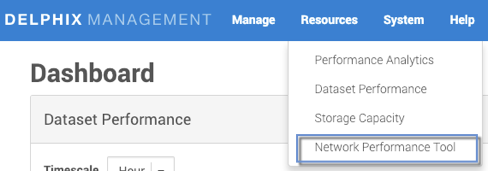
To access the Network Performance Test Tool:
-
In the top navigation bar, click Resources.
-
Select Network Performance Tool.
The Network Performance Tool page will appear. There are two tabs: Testing and History.
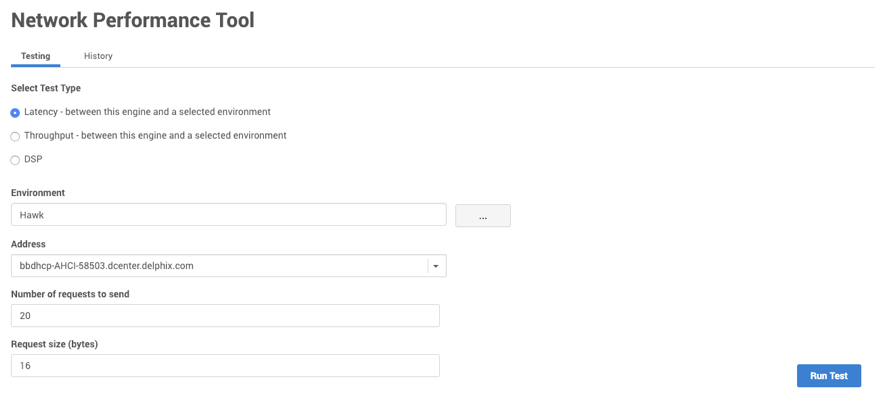
Choose test type
On the Testing tab, you can select one of three test types:
|
Test type |
Parameters required |
|---|---|
|
Latency |
|
|
Throughput |
|
|
Delphix session protocol |
|
CLI
This command provides both remoteHost and remoteAddress:
env.name network test latency create *> ls
Properties
    type: NetworkLatencyTestParameters
    remoteAddress: (unset)
    remoteHost: (unset)
    requestCount: 20
    requestSize: 8B
This is an important distinction, as the latency test has no requirement for an address to be connected to a known Environment, since it is a simple ping test. The Throughput tests are dependent, but Latency tests should use the correct values for remoteAddress and remoteHost.
For more information on CLI procedures using the Network Performance Tool, read Network performance in the CLI cookbook.
Select an environment
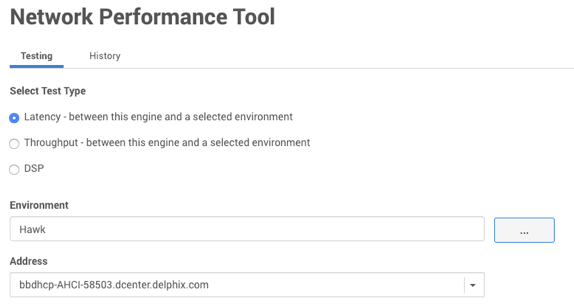
For either a Latency or Throughput test, you must select an environment. If you selected an environment in the Datasets panel, this field will auto-populate. If you need to select a different environment:
-
Next to the Environment field, click the button with three dots.
-
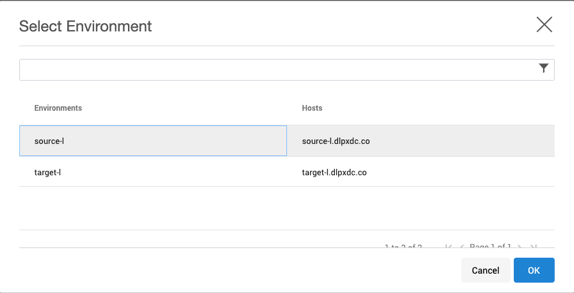
Select the environment you want to use in the test.
-
Click OK.
Run and cancel network performance tests
To run a test:
-
Enter all the required parameters.
-
Click Run Test.
-
To cancel the test click Cancel.
View test history
In the History tab, you can view the results of all previous tests you have run.
-
Select the radio button for the type of test for which you want to see the results:
-
Latency, or
-
Throughput, or
-
Delphix Session Protocol
-
-
Optional: sort the tests by clicking one of the column headings.
-
Click the particular test for which you want to see the results.
The details of that test will appear. -
Click OK to return to the History tab.