Configure network security settings
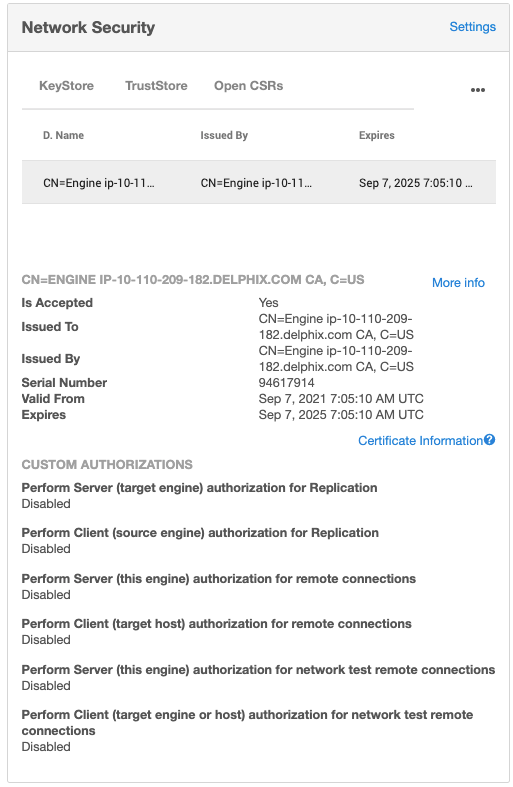
To enable and modify the extent of security settings for HTTPS and DSP (Delphix Session Protocol), click Settings in the Network Security panel to open a wizard where you can modify the settings.
Configure HTTPS and DSP settings
The following procedure guides you through the process of enabling or modifying security settings for HTTPS and DSP.
-
Connect to the Delphix Engine
http://<Delphix Engine>/login/index.html#serverSetup -
Click on the Settings link in the top right of the Network Security panel. This will open a new wizard where you can modify the settings.
-
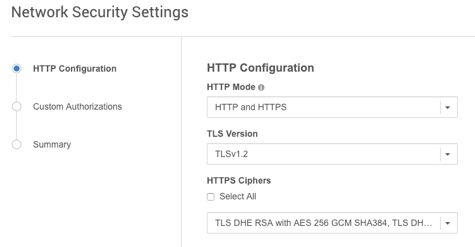
In the Network Settings wizard, you can modify the HTTP mode, TLS Version, and TLS Cipher Suites to be used.
-
Click Next.
-
By default, self-signed certificates are used for server authentication and username/password login acts as client authorization. You can enable the use of custom certificates and modify the extent of how they are used for the following features:
-
Remote host connections (SnapSync, Remote hosts for Target or Server environments, and Oracle V2P)
-
Throughput tests using the Network Performance Tool and DSP
For all three features, Server authentication must be enabled for Client authentication to take effect.Any configuration change requires a stack restart to take effect. Submitting the Network Security Settings in the GUI will automatically trigger a stack restart. All jobs will be stopped, but VDBs will continue to run.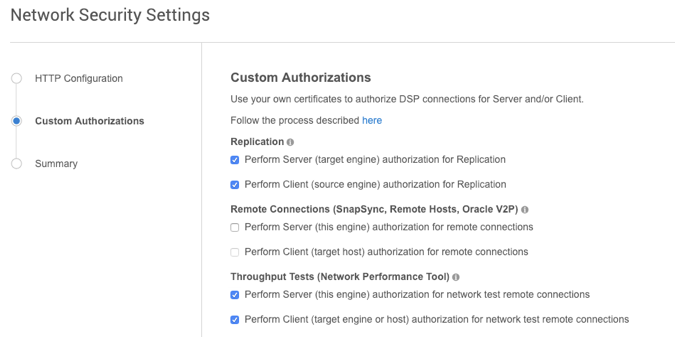
-
Once the HTTP and DSP configurations have been set as desired, click Next.
-
A Summary tab opens. Click Submit to accept your changes and trigger a stack restart necessary for the changes to take effect. All jobs will be stopped, but VDBs will continue to run.