Working with file formats
Use these tasks to import, edit, duplicate, export, and delete file formats in the Continuous Compliance Engine. File formats define the structure of the data files that the engine reads during masking and profiling operations.
A file format describes the layout of a source file; its fields, delimiters, record types, or copybook definitions so that the engine can correctly parse the file and apply masking assignments. The supported format types are Delimited, Fixed-Width, XML, JSON, Parquet, and Mainframe Copybook. File inventories are derived from the file format they reference, so any change to a format applies to every data file that uses it.
Import file formats
Use this task to import a Delimited, Fixed-Width, XML, JSON, or Parquet file format. For Mainframe copybooks, see Import a Mainframe format.
Steps
-
From Home, go to Settings > Data Formats, then select the Files tab at the top.
-
Click + File Format.
-
In the Format Type step:
-
Select the format type.
Formatting Examples are shown in the wizard, based on each format type. -
Click Next.
-
-
In the Import Format step:
-
(Optional) Enter a custom name for the format. If left blank, the format is named after the uploaded file.
-
Click Choose File and select the file from which the fields will be imported. The contents of the imported file vary for delimited, fixed-width, XML, JSON, and parquet file types.
Do not upload sensitive data when creating a Parquet file format, because the exported file may expose it. -
To replace a file selected in error, click the x next to the file name and select another file.
-
Click Next.
-
-
(Delimited and Fixed-Width only) In the Header & Footer step, configure the number of header or footer records, or leave the values empty.
-
Click Next.
-
In the Summary step, review the details.
-
Click Save.
Import a Mainframe format
Use this task to import a Mainframe copybook. Duplicate field names within a copybook file are not supported.
Steps
-
From Home, go to Settings > Data Formats, then select the Maninframe tab at the top.
-
Click + Mainframe Format. This will import the copybook directly into the Continuous Compliance Engine.
-
The Format Type will be preselected with Copybook, click Next to continue.
-
In the Import Format step:
-
(Optional) Enter a custom name for the format. If left blank, the format is named after the uploaded file.
-
Click Choose File and select the file from which the fields will be imported. To replace a file selected in error, click the icon next to the file name and select another file.
-
Click Next.
-
-
In the Summary step, review the details.
-
Click Save.
Edit a file format
Use this task to modify an existing file format. Editing is supported for all format types, including Mainframe.
Steps
-
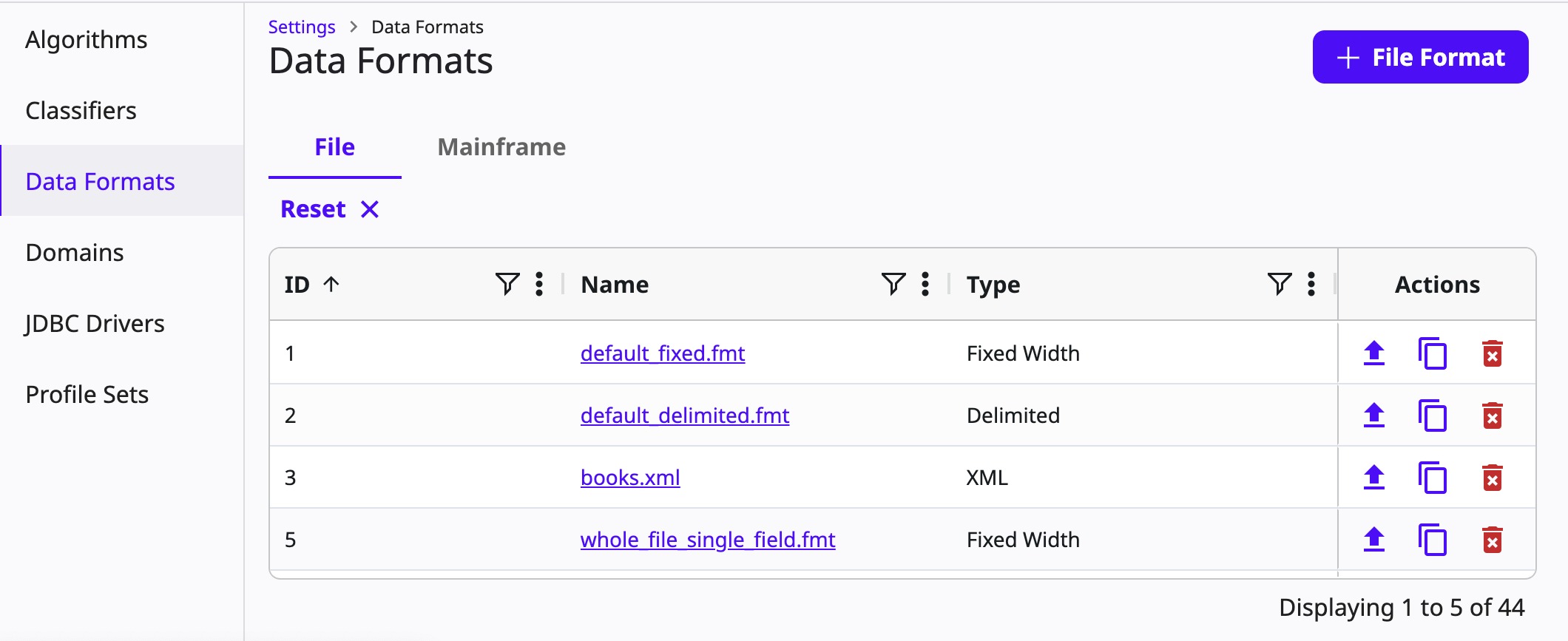
From Home, go to Settings > Data Formats.
-
Select the Files or Mainframe tab.
-
In the Name column, click the hyperlinked name of the format.
-
Make your changes in the edit screen and save.
Duplicate a file format
Use this task to create a copy of an existing file format under a new name. Duplication is supported for all format types, including Mainframe.
Steps
-
From Home, go to Settings > Data Formats.
-
Select the Files or Mainframe tab.
-
Locate the format you want to duplicate.
-
Open the Duplicate File Format dialog from the Actions column.
-
Enter a new file format name.
-
(Optional) Select Do not copy masking assignments to exclude file field algorithm assignments and document store type configurations from the copy. By default, masking assignments are copied.
-
Click Save.
Export a file format
Use this task to download an uploaded file format. Export is supported for all format types, including Mainframe.
For Fixed-Width and Delimited formats, you can select a specific record type to export, or leave the selection empty to export the default All Records format. For XML and JSON formats, the system generates a file format template with placeholder values based on the extracted path structure. Mainframe Copybook formats are exported directly without a record type selection.
Steps
-
From Home, go to Settings > Data Formats.
-
Select the Files or Mainframe tab.
-
Locate the format you want to export.
-
Open the export option from the Actions column.
-
(Fixed-Width and Delimited only) In the Export File Format dialog, select a record type, or leave it empty to export All Records. For Mainframe Copybook formats, the file downloads directly.
-
For Fixed-Width and Delimited, click Export to download the file.
Delete a file format
Use this task to remove a file format from the engine.
Steps
-
From Home, go to Settings > Data Formats.
-
Select the Files or Mainframe tab.
-
In the Actions column for the format, click the Delete icon.
-
Confirm the deletion when prompted.