Mapping (Algorithm frameworks)
A Mapping algorithm allows you to state what fictitious values will replace the original data. It maps original data values to masked values pre-populated in a lookup table through the Continuous Compliance Engine user interface. There will be no collisions in the masked data because it always matches the same input to the same output. For example, David will always become Raj and Melissa will always become Jasmine. The algorithm checks whether an input has already been mapped; if so, the algorithm changes the data to its designated output.
The Mapping algorithm can be used on any set of values, of any length, but you must know how many values are being masked. To that end, provide at least the same amount of values as there are unique values being masking; though, more is acceptable. For example, if there are 10,000 unique values in the column being masked, you must give the Mapping algorithm at least 10,000 values.
The Mapping algorithm can be configured for mappings managed locally on the Continuous Compliance Engine or remotely on a user-managed PostgreSQL database. Remote mapping should be used for those who want to manage the storage allocated for mappings or share the same mappings from this algorithm across multiple Continuous Compliance Engines. More information about remote mapping can be found in the Remote mapping page.
Continuous Compliance Engine 6.0.9.0 and earlier: When you use a Mapping algorithm, you cannot mask more than one table at a time. You must mask tables serially.
Continuous Compliance Engine 6.0.10.0 and later: A single Mapping algorithm can have multiple jobs running concurrently.
Tokenization/Reidentification
Mapping algorithms can be used with Tokenization and Reidentification jobs. However, if ignoreCharacters are configured for the algorithm, Tokenization/Reidentification cannot be used.
Creating a mapping algorithm via the UI
To create a mapping algorithm, follow the below instructions:
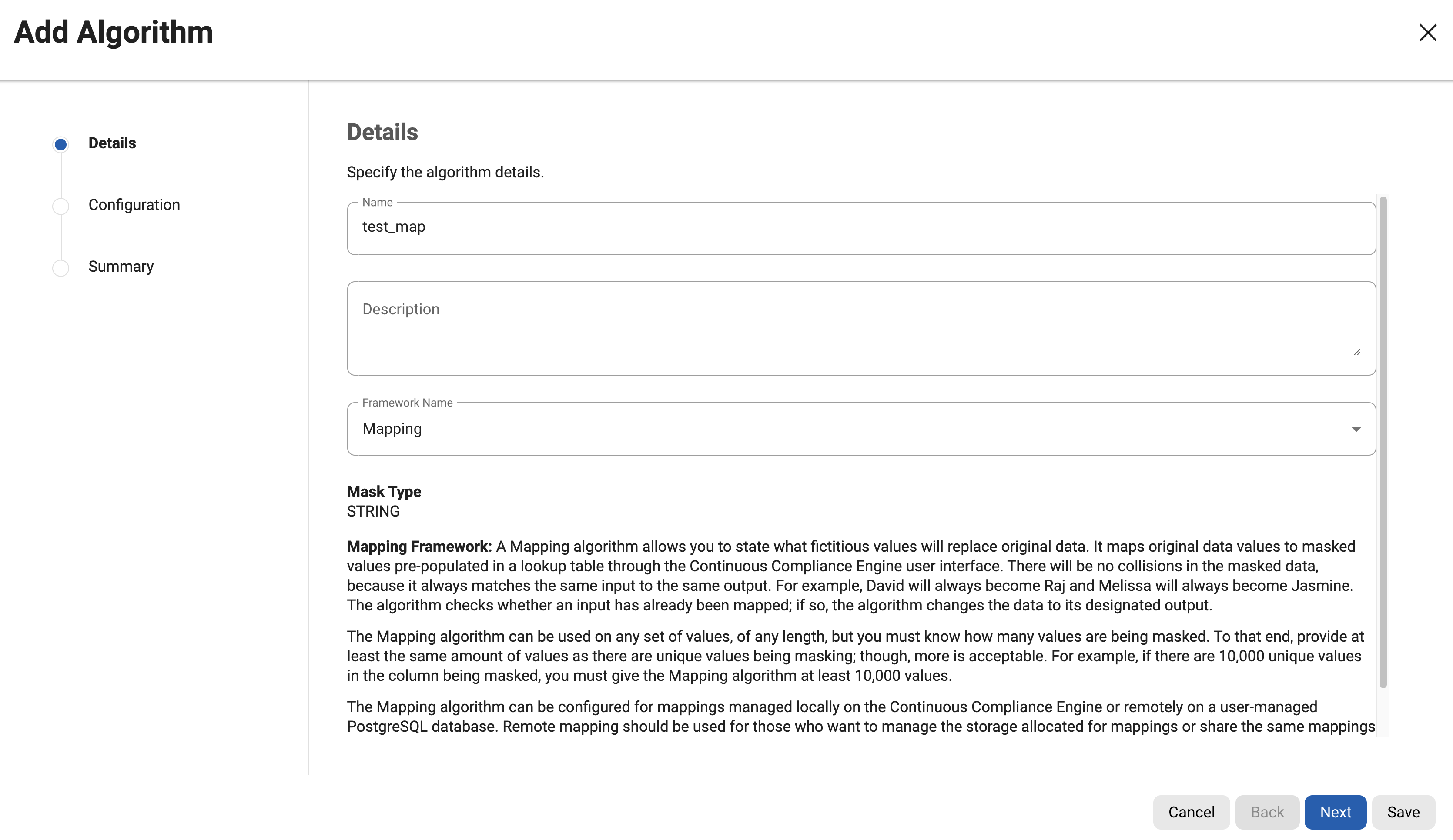
At the top right of the Algorithms page, click + Algorithm.
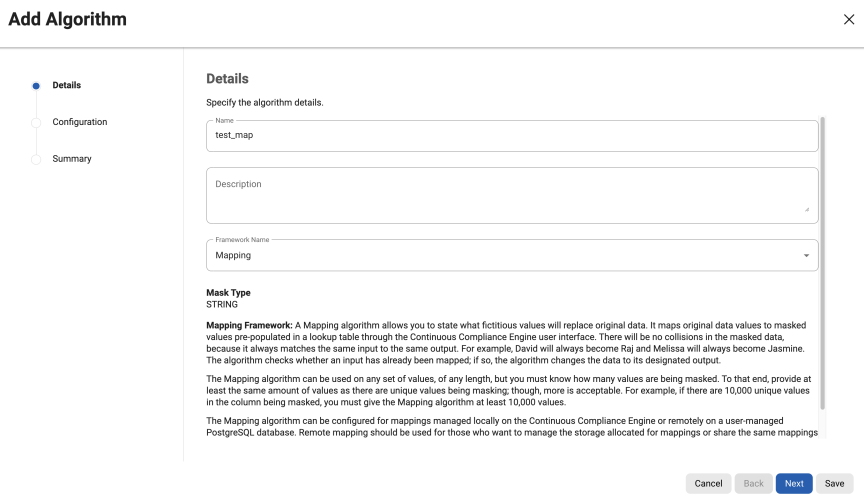
Enter an Algorithm Name.
This MUST be unique.Enter a Description.
Select Mapping as the Framework Name and click Next.
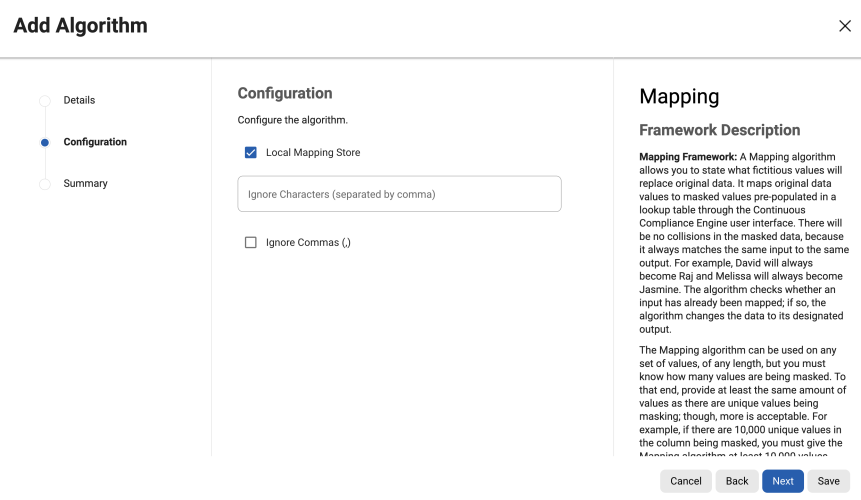
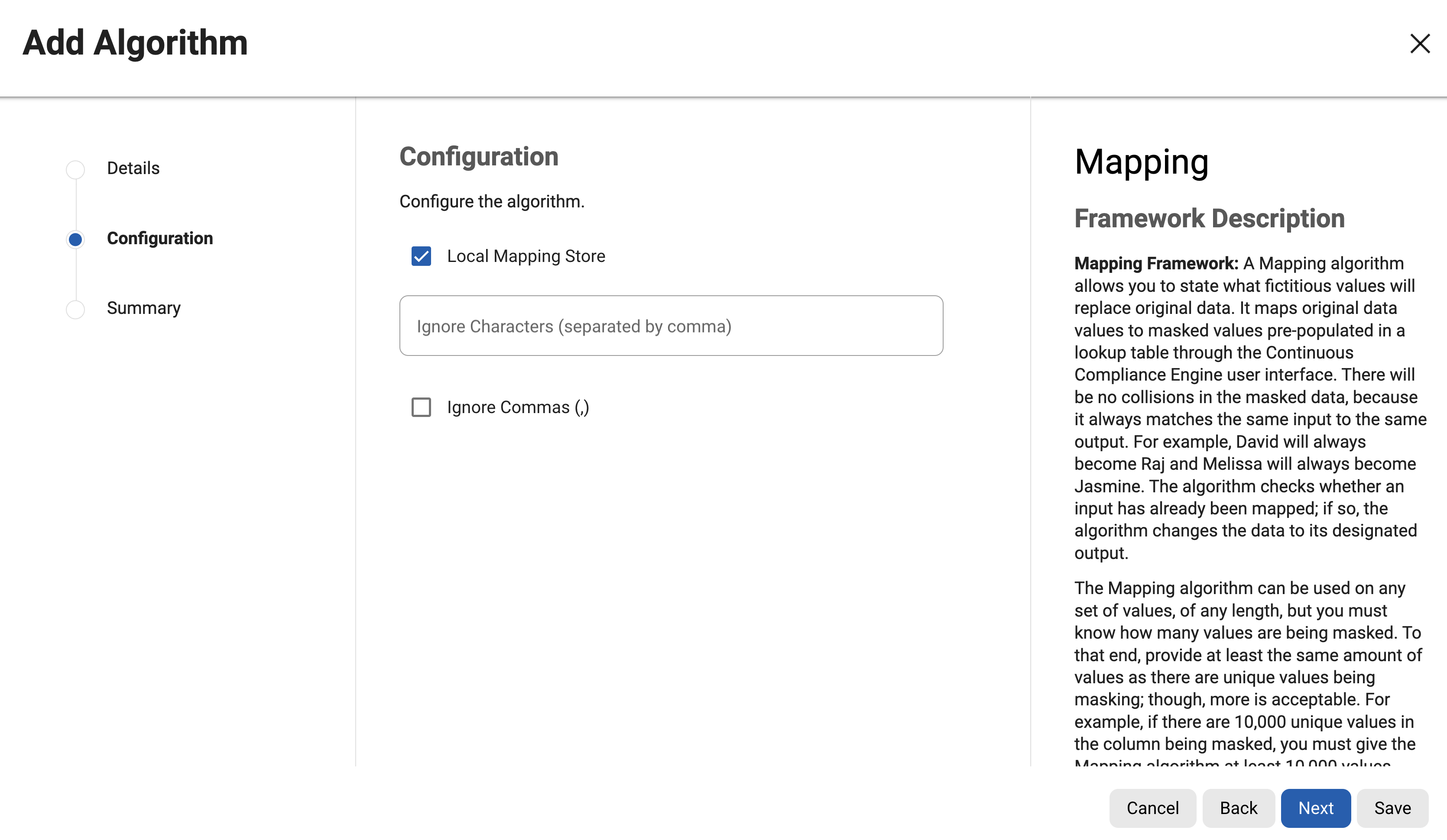
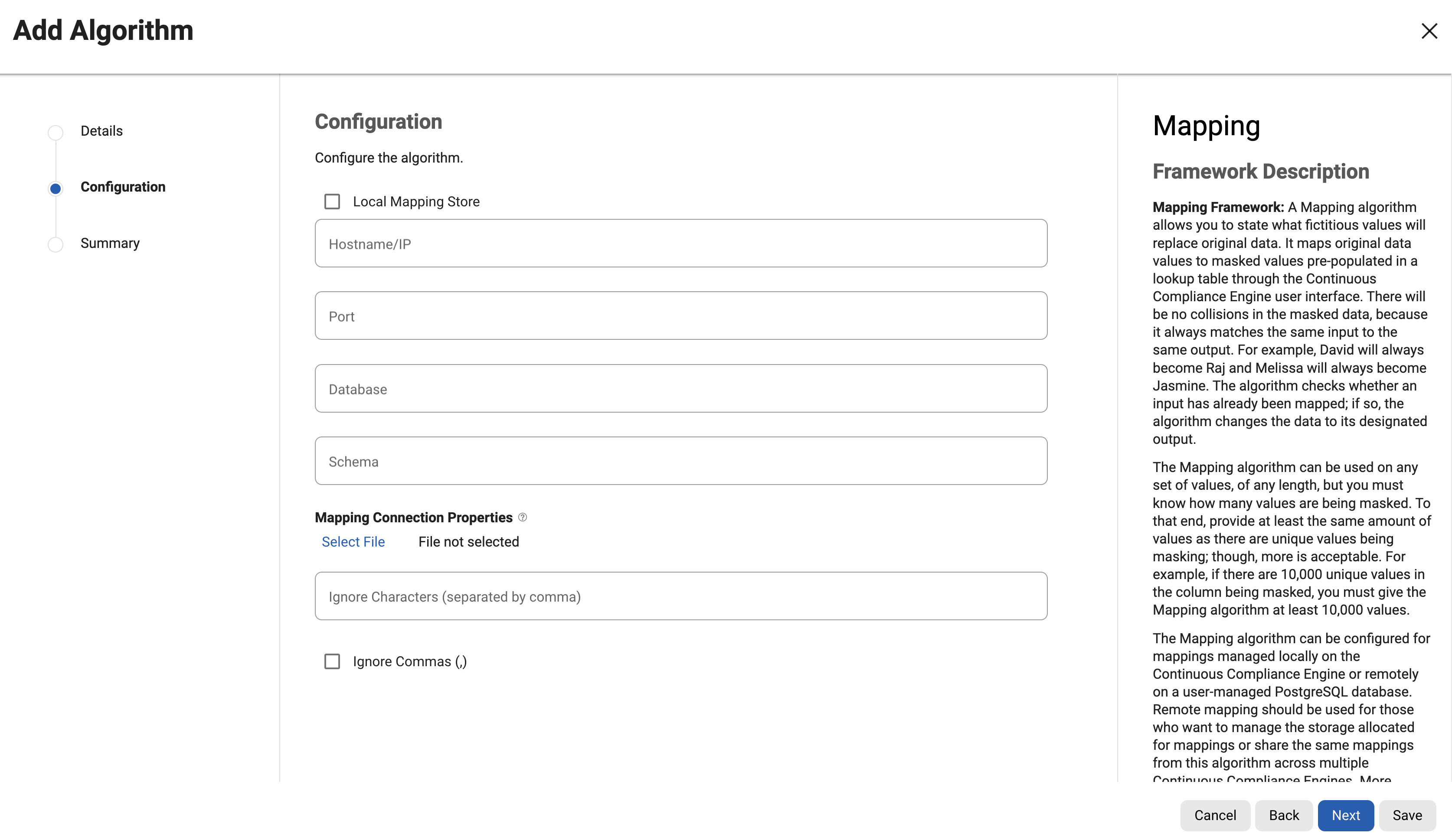
Select whether or not the mappings will live locally or remotely by toggling the Local Mapping Store checkbox appropriately. If using a local mapping store, proceed to step 8. For more information about remote mapping stores, visit the Remote mapping page.
Specify Hostname/IP, Port, Mapping Database, and Schema of the remote database.
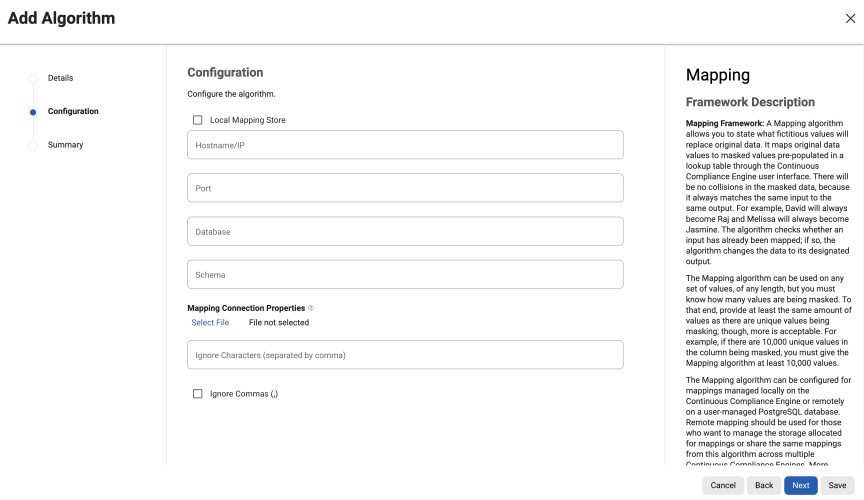
Enter any remaining connection parameters in a properties file specified by the Mapping Connection Properties field.
To ignore specific characters, enter one or more characters in the Ignore Character box. Separate values with a comma.
To ignore the comma character (,), select the Ignore comma (,) checkbox.
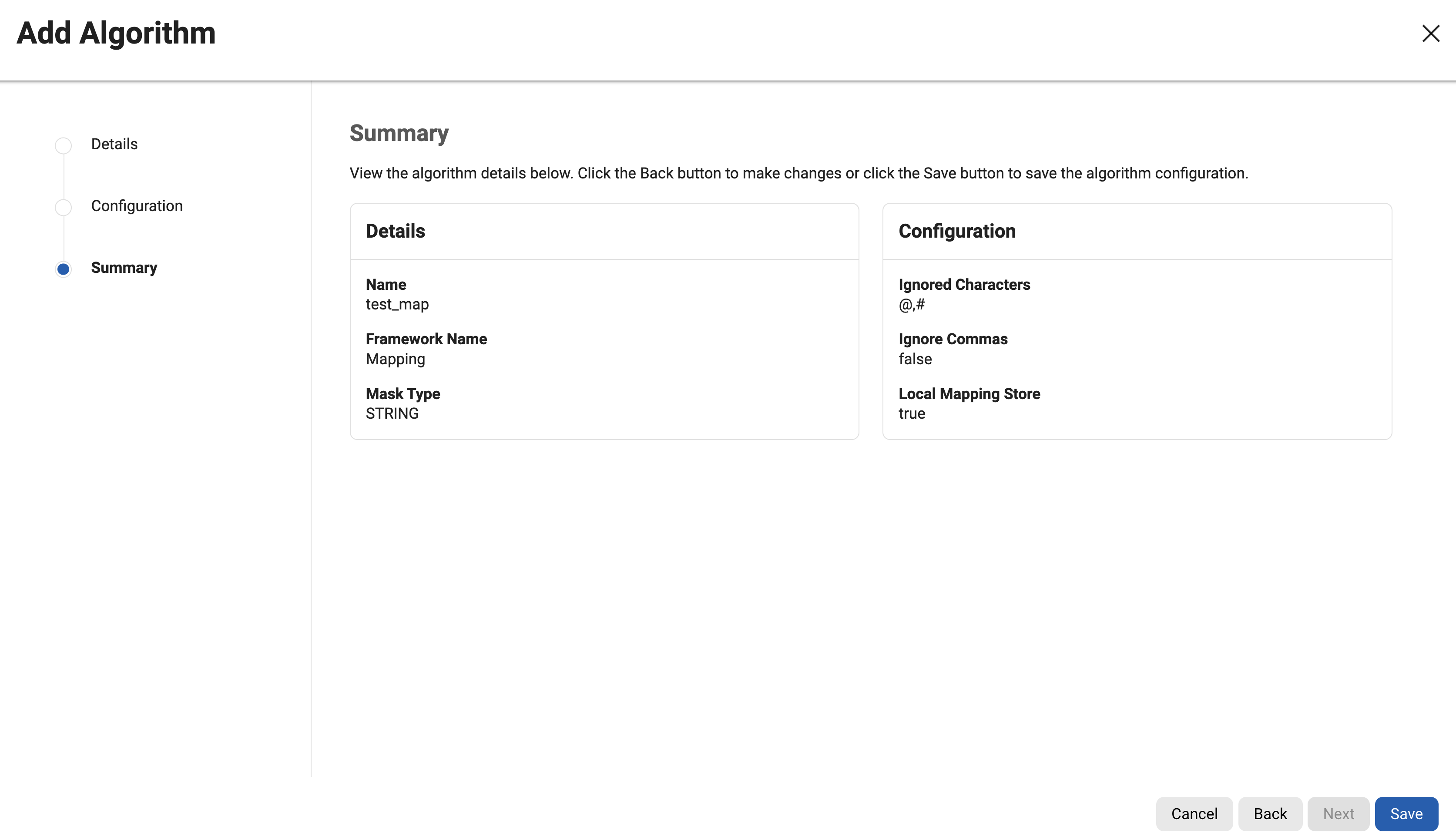
Click Next to verify details on the Summary step.
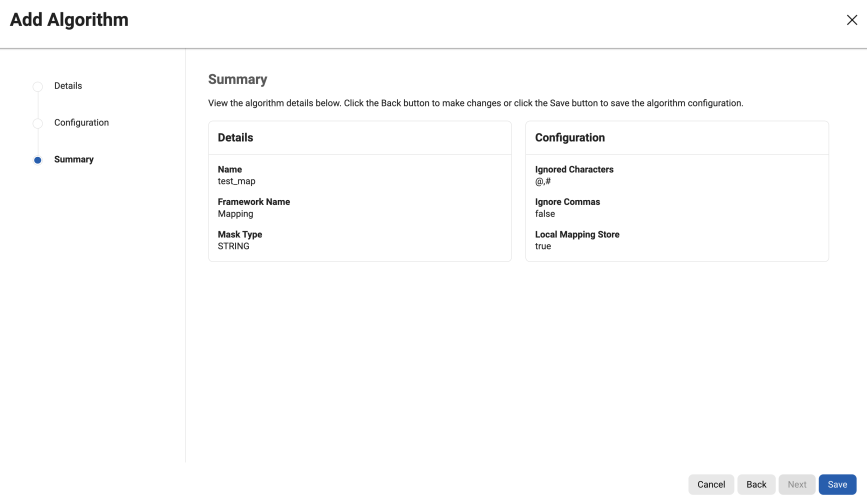
When you are finished, click Save.
Before you can use the algorithm by specifying it in a profiling job, you must add it to a domain. If you are not using the Continuous Compliance Engine Profiler to create your inventory, you do not need to associate the algorithm with a domain.
For information on creating Mapping algorithms through the API, visit the Mapping (API client) page.
Managing mappings via UI
Regardless of where the mappings reside (local or remote), the management process is the same. Use the UI to perform options like import/export, delete, or reset mappings.
These tasks can only be performed by a user with sufficient privileges per each task, as follows:
Export mappings
adminprivileges required.A passphrase is required, meaning exports will be encrypted.
Due to the encryption, it will not be possible to see the allocated mappings.
Import mappings
algorithm: updateprivileges required.
Delete mappings
algorithm: updateprivileges required.
Reset mappings
algorithm: updateprivileges required.
To Manage Mappings, click the (…) button to the right of the corresponding Mapping algorithm row under the Actions column and select the Manage Mappings option.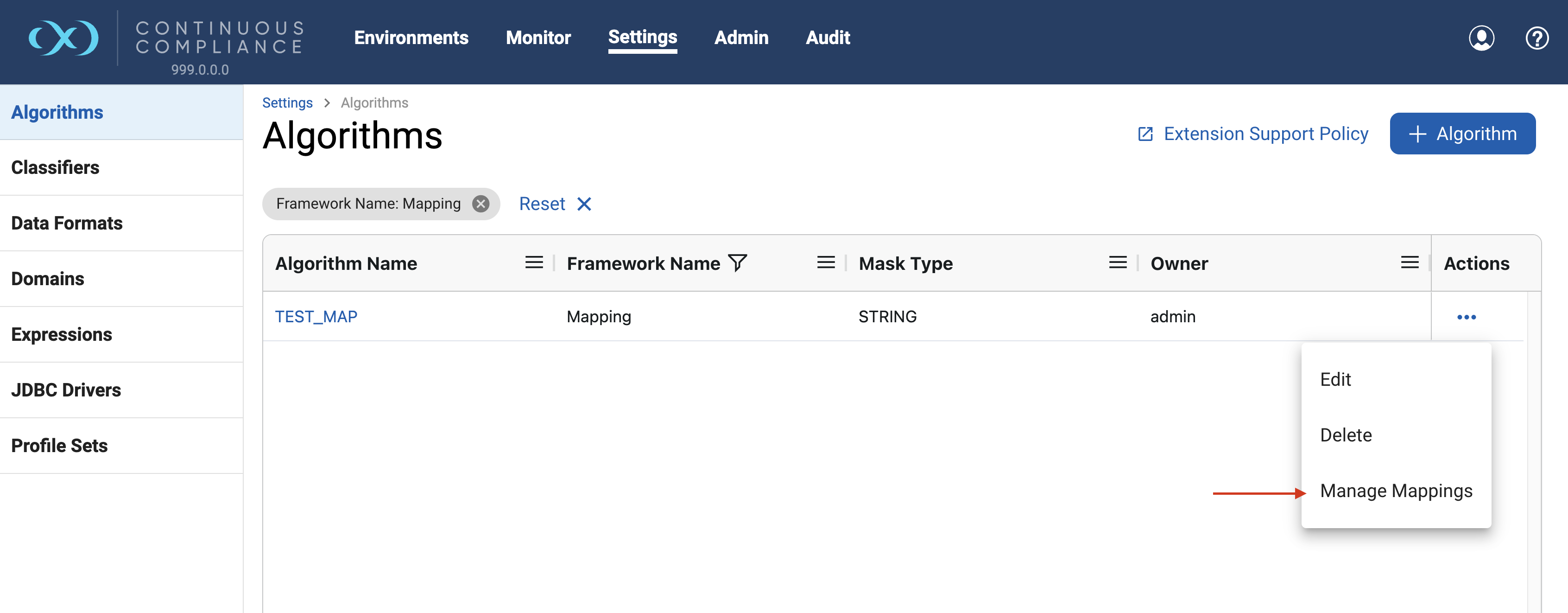
At the top, there are two statistics provided for the mappings:
Total Mappings is the number of mapping outputs that exist for this algorithm.
Available Mappings is the number of mappings that have not yet been assigned to an input value.
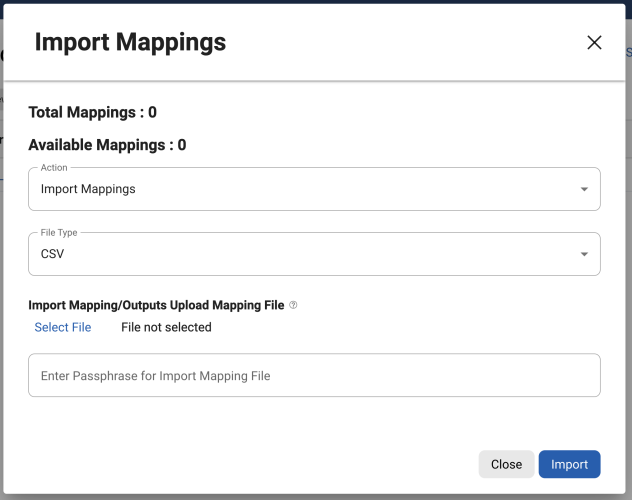
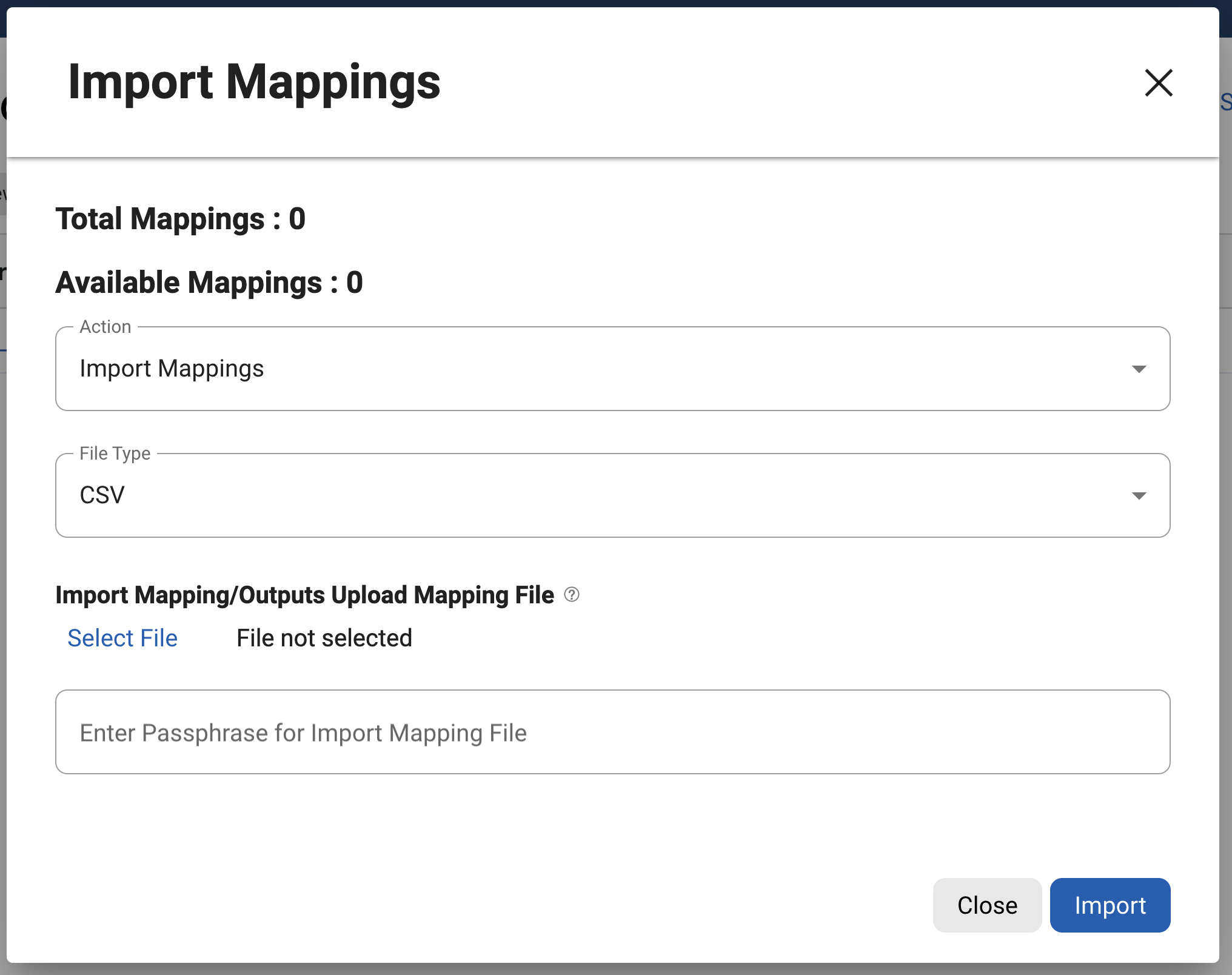
When a job using the Mapping algorithm runs, the mappings are loaded into memory. This means that enough memory must be provided to the job to load the mappings. A Mapping algorithm with 2GB worth of mappings will require a job with a larger configured Maximum Memory than what is needed for a Mapping algorithm with 2MB worth of mappings.
In addition to mapping statistics, the import/export, delete, or reset mappings can be performed by selecting Action.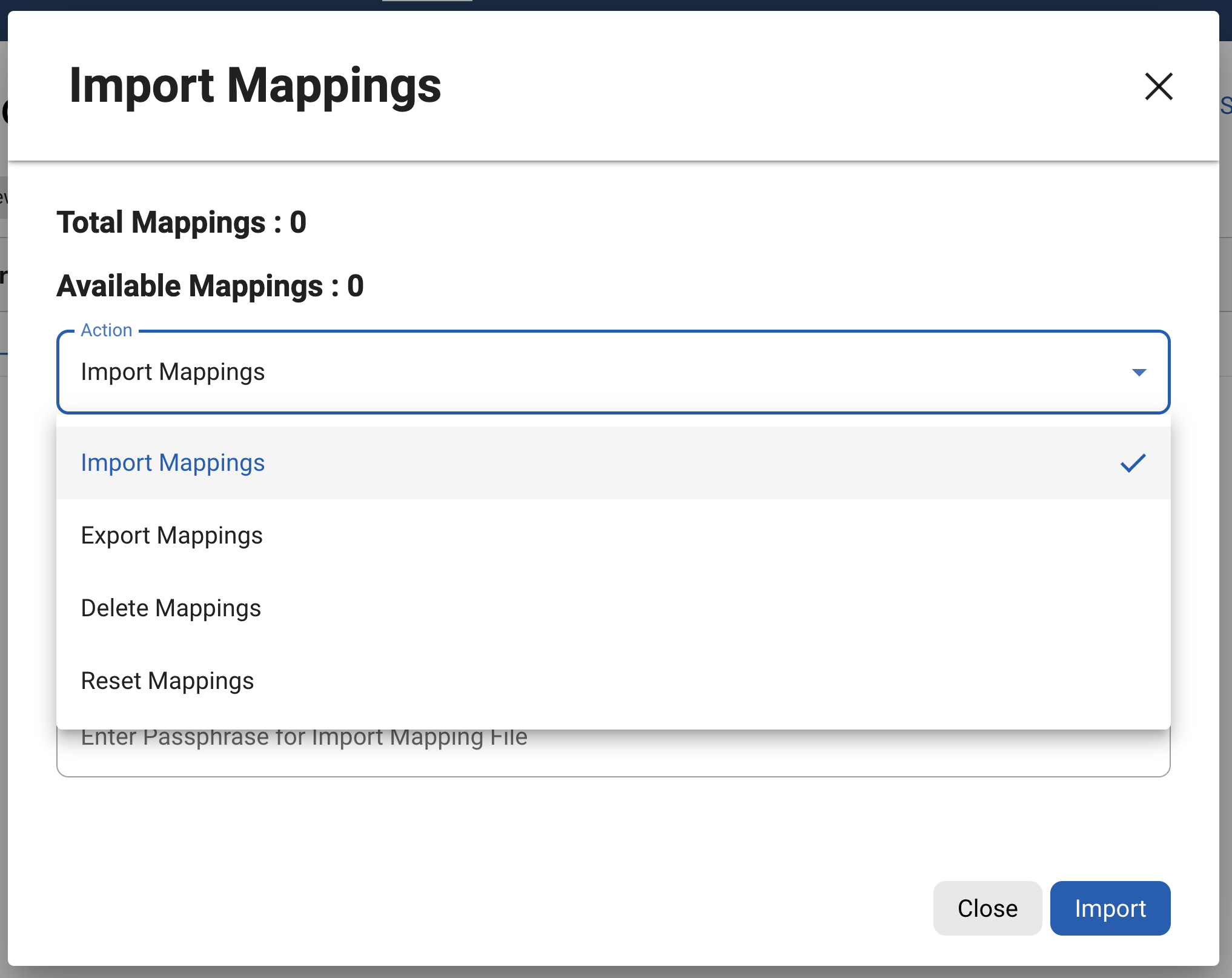
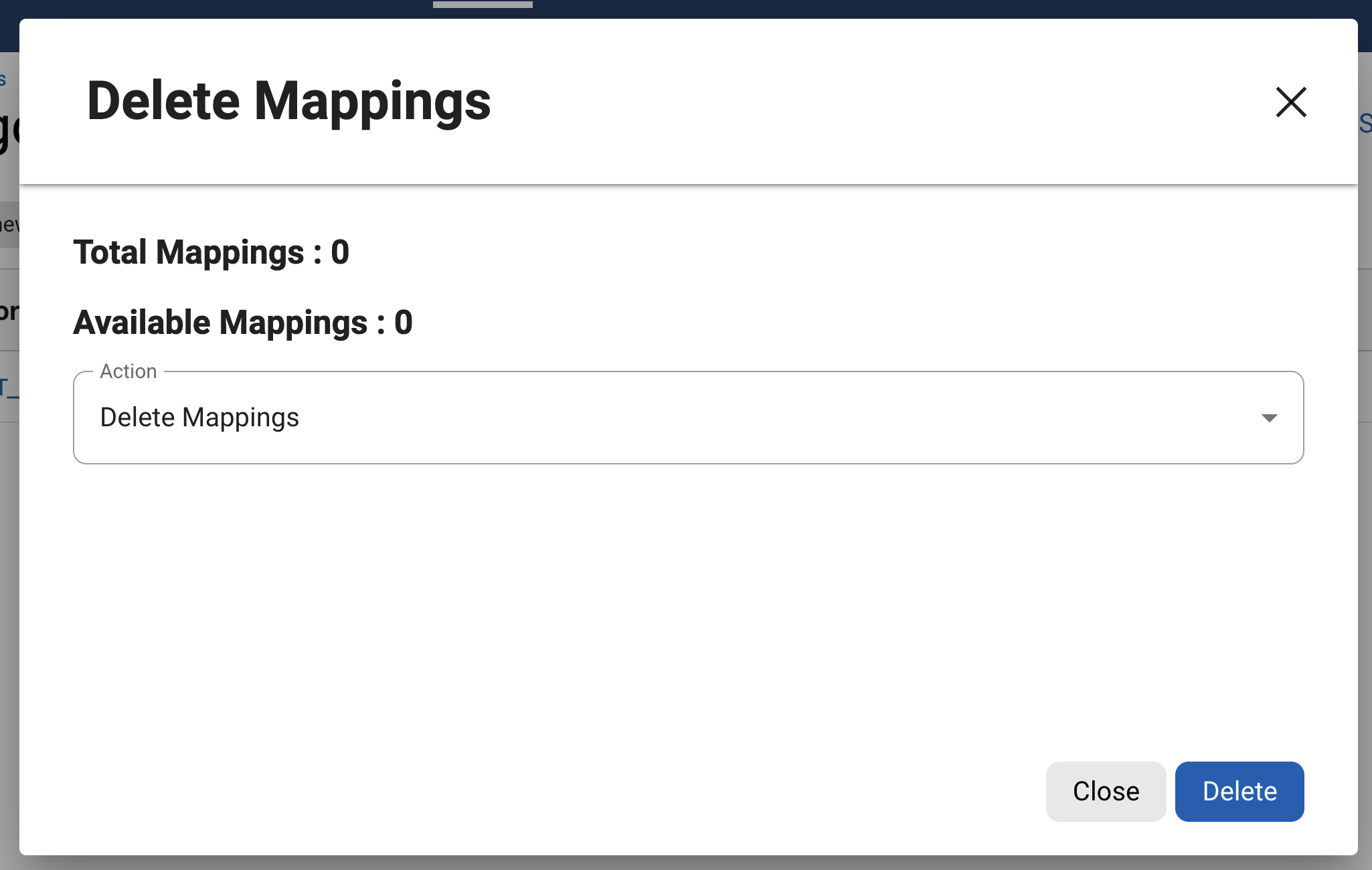
Delete mappings
This action will delete all input/output combinations and effectively start this algorithm fresh. For this option to take effect, select the Manage Mappings option, then select Action Delete Mappings.
Export mappings
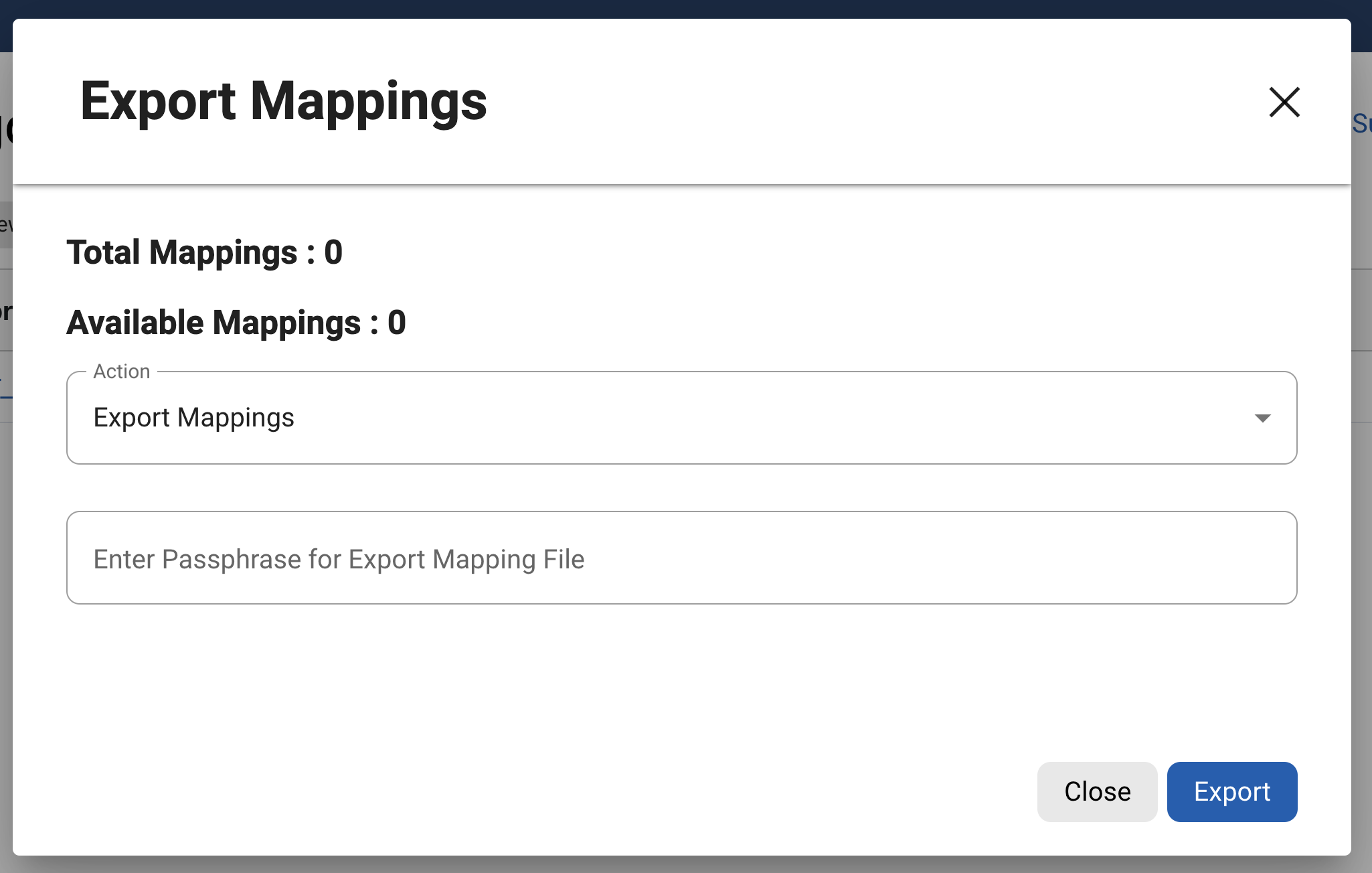
This action will export all mappings into a file that can then be used to seed another mapping algorithm or exist as a backup list of established mappings. For security purposes, a passphrase is required to encrypt the file on export.
To export mappings, select the Export Mappings action and provide a passphrase, then click Export.
If you wish to decrypt the exported file from the command line, run the following command:
openssl enc -aes-128-cbc -a -d -pass stdin -pbkdf2 -iter 100000 -md SHA256 -in PATH_TO_EXPORT_FILE
Once the export is clicked, it will start the Async Task for exporting mappings. File download option will be available on the 'Monitor > Async Task' Page.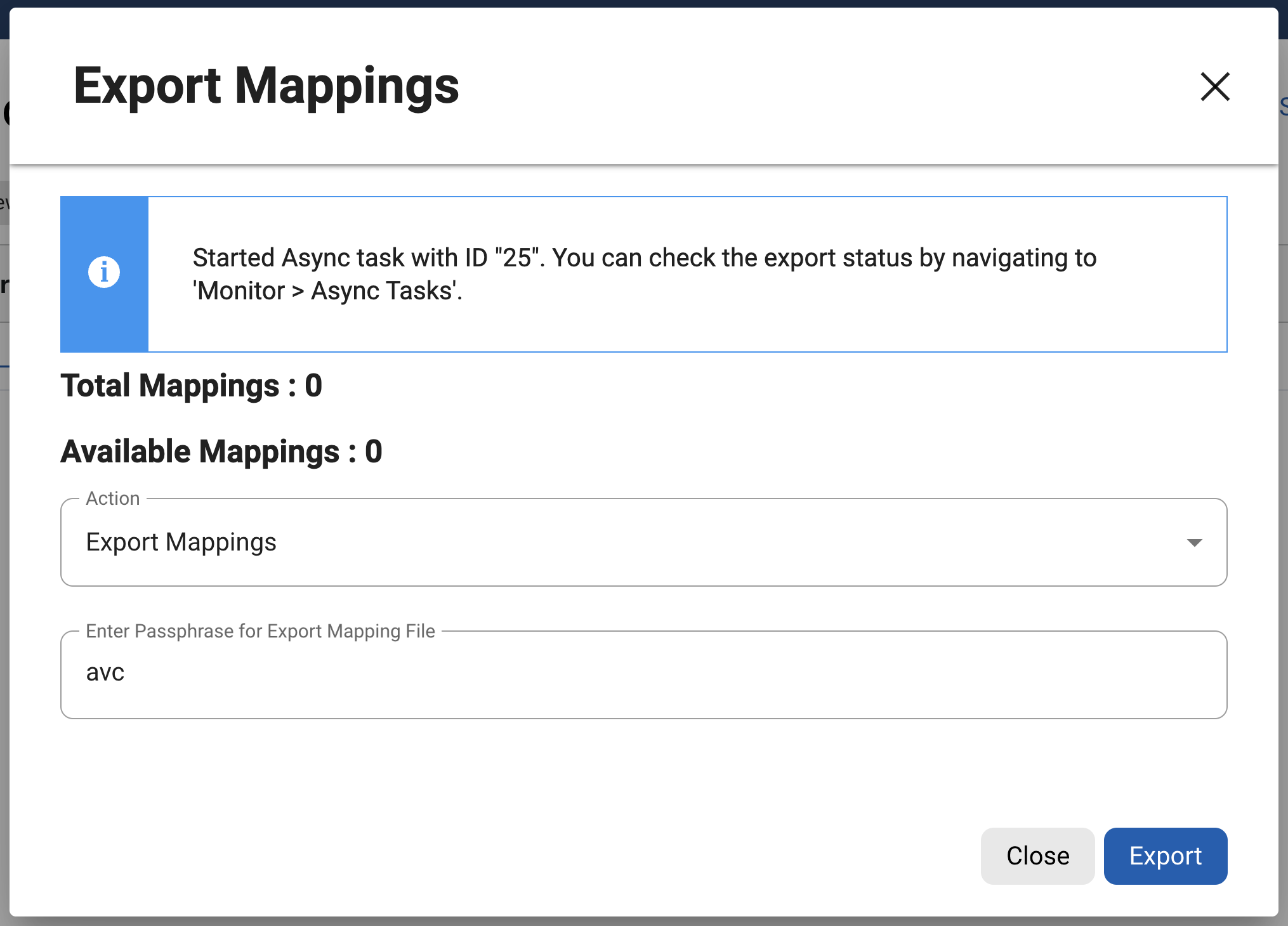
Import mappings
This action will add mappings to the mapping algorithm. Mappings can be provided in two different formats; PLAINTEXT and CSV.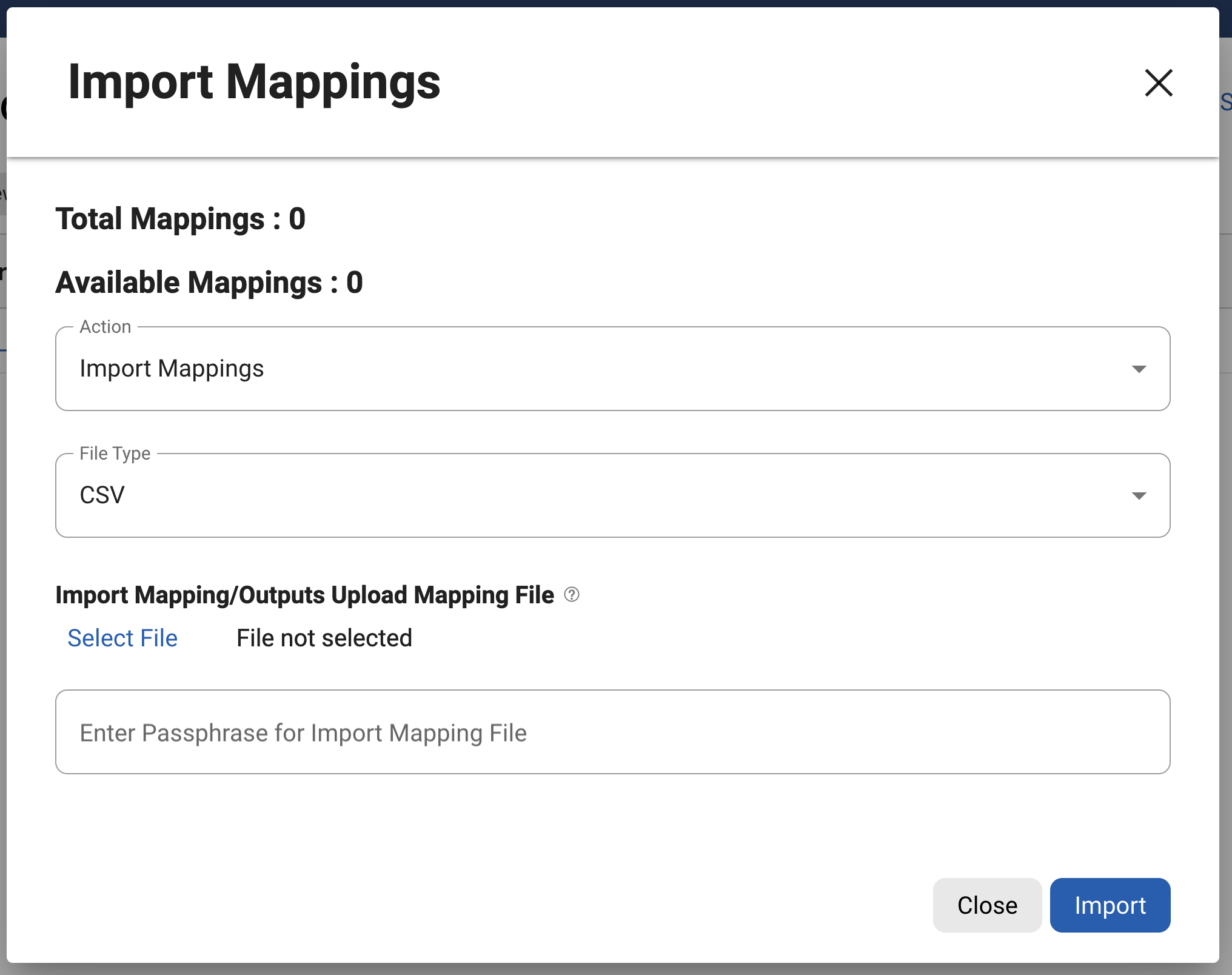
PLAINTEXT
A PLAINTEXT mapping file can ONLY provide mapping outputs (i.e.: values you want to mask to). The file must have NO header. Make sure there are no spaces or returns at the end of the last line in the file.
The following is a sample PLAINTEXT mapping file. Notice that there is no header and only a list of values.
Smallville
Clarkville
Farmville
Townville
Cityname
Citytown
Towneaster
CSV
A CSV mapping file can provide both mapping inputs and outputs. That is, you can determine beforehand what you want your mappings to be. The CSV file must have only two columns – input and output. The first line of the file must be the header input,output. Make sure there are no spaces or returns at the end of the last line in the file.
The following is a sample CSV mapping file.
input,output
New York,Smallville
Boston,Clarkville
San Francisco,Townville
"",Cityname
"",Citytown
"",Towneast
An input value does not have to be specified, but an output value must be specified for a line to be considered valid. Invalid lines are silently ignored.
Once a File Type is selected, choose the mapping file in the Import Mappings/Outputs field.
If providing a previously exported mapping file that has been encrypted with a passphrase, select the CSV file type, provide the unaltered encrypted file, and provide a passphrase.
When the appropriate selections have been made, click Import.
Any duplicate values provided will be silently ignored.
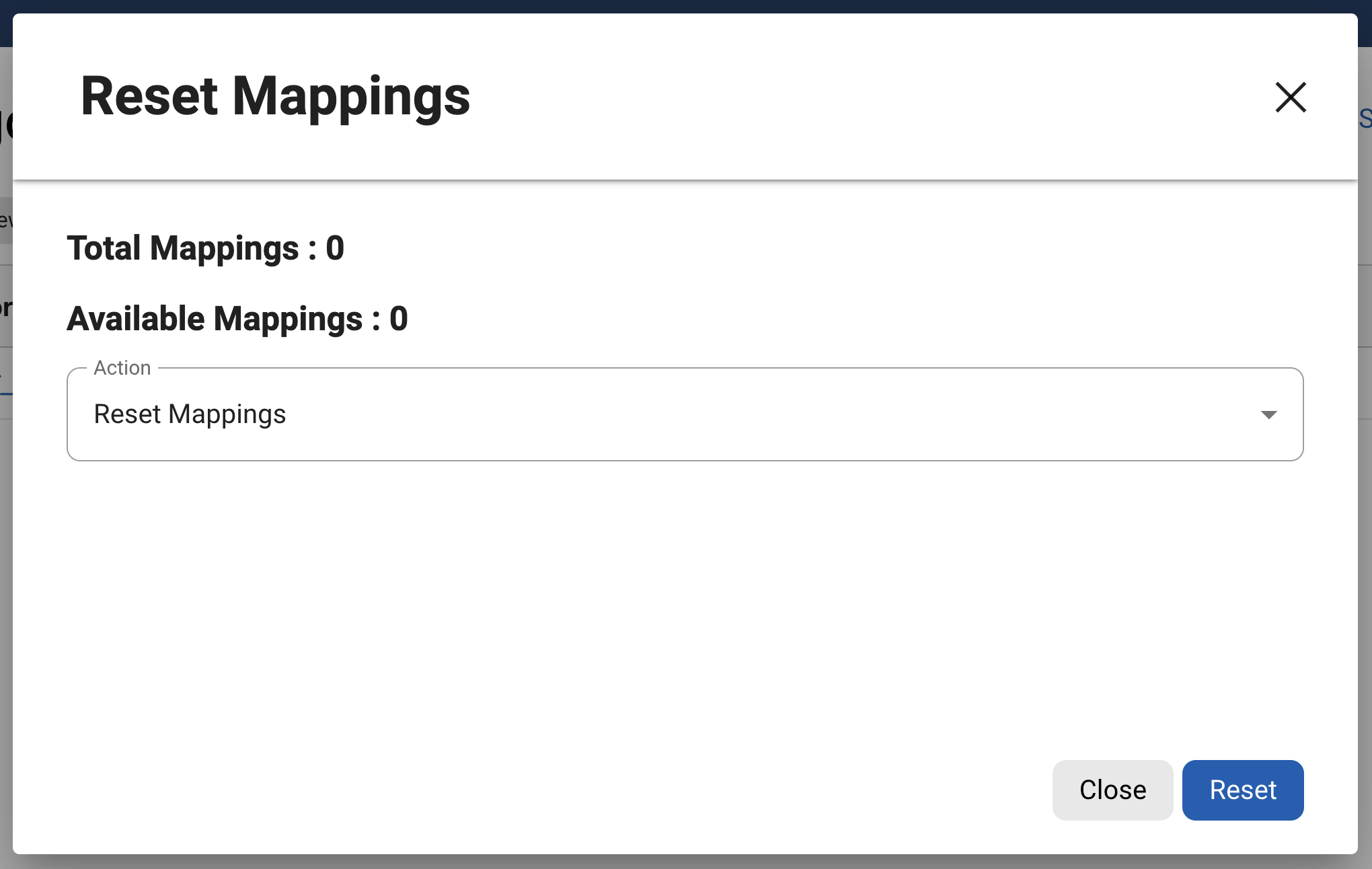
Reset mappings
This action will delete all inputs for provided mappings, giving you a mapping algorithm with as many outputs as you had before, but with all of them available for assignment the next time the mapping algorithm is used.
Troubleshooting
No mapping values
If no mapping values has been loaded, the job will fail and report the following error:
ERROR ... No mapping metadata found for algorithm '[MA_ALG]'.
Description:
* MA_ALG is the name of the algorithm.
* MA_COL is the column.
No free mappings are available
If there are insufficient mappings available in the Mapping Algorithm when running a masking job, the job will fail and report an error:
WARNING-UNMASKED-DATA: RED_Mapping_Name failed to mask data at tcedCUST.CUST_NAME: Failed to map value. No free mappings are available. (4000000+ occurrences)
Description:
* MA_ALG is the name of the algorithm.
* MA_COL is the column
* How many mappings are there
* How many is missing